Customer Support & Portal
Set up a branded customer portal, manage support tickets, run live chat, publish community content, and track support health — all without leaving Productivity Workbench.
Enabling Customer Support
Go to Settings → Capabilities and enable Customer Support & Portal. Once enabled, the Support section appears in the sidebar with pages for Tickets, Kanban, Config, Forum, Communications, Content, and Support Insights.
Configuring the Customer Portal
Go to Support → Portal Config to configure the publicly accessible portal your customers will use:
- Portal slug — sets the URL path for your portal (e.g.
/portal/my-product-support). - Welcome headline & body — personalise the greeting shown to customers when they land on the portal.
- Authentication methods — allow workspace accounts, email magic links, or both.
- Accepted ticket types — choose which of Support / Incident / Request / Feedback customers can raise.
- Internal-only mode — restrict the portal to internal users only (no external customer access).
- Feature toggles — independently enable or disable Forum, Live Chat, Polls, and Notifications.
SLA Targets
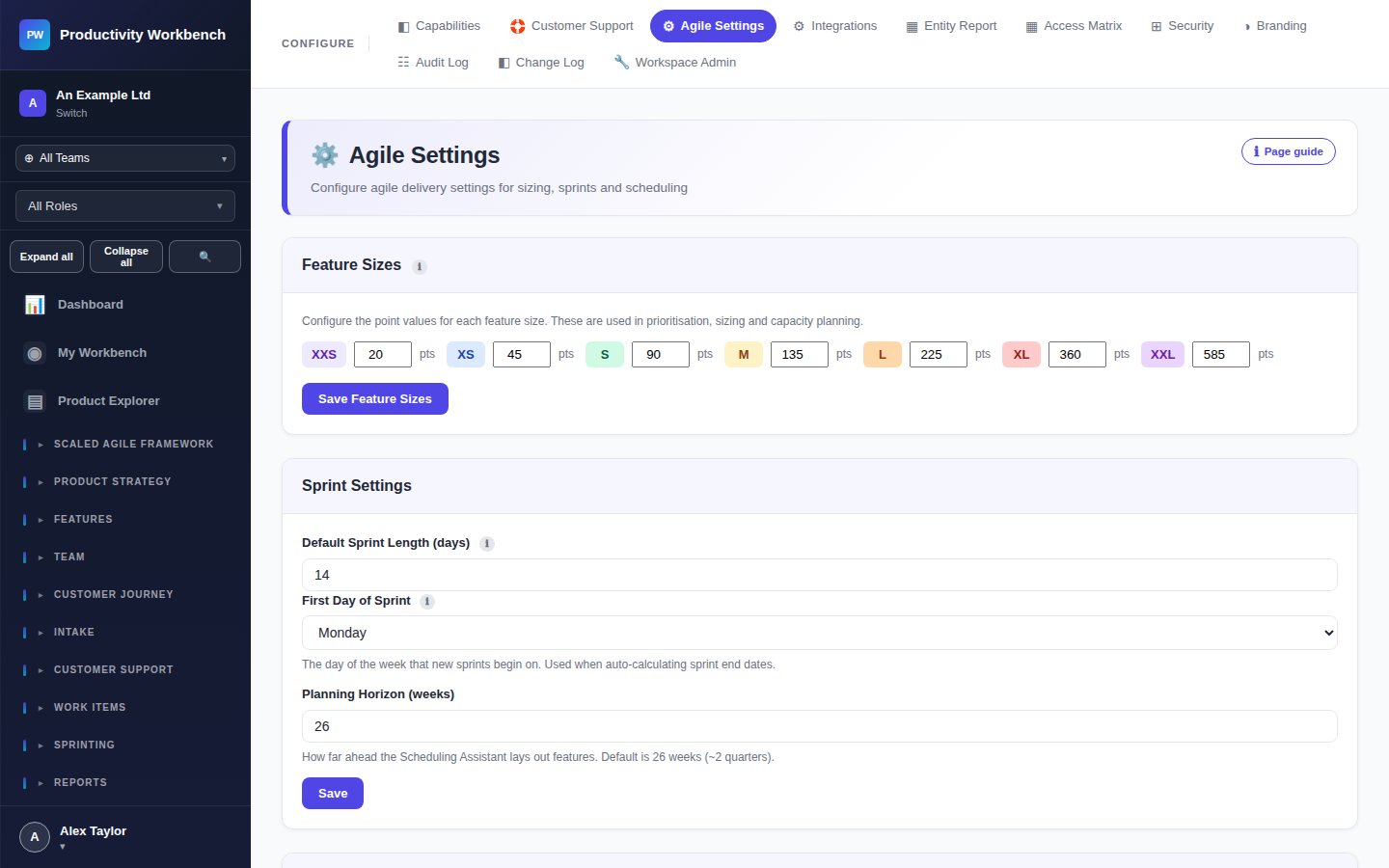
Set first-response and resolution time targets (in hours) for each priority level (Critical, High, Medium, Low) on the Portal Config page. Ticket lists and the Support Kanban board display colour-coded SLA health badges: healthy, warning (≥ 80% elapsed), and breached.
Raising & Managing Tickets
Tickets can be created from the Support → Tickets page or submitted by customers via the portal. Each ticket captures:
- Type (Support / Incident / Request / Feedback), Priority, and Source
- Customer name and email
- Labels for categorisation
- Internal or customer-visible notes
- Assignment to a team member
Move tickets through the lifecycle by updating their status. The timeline records every status change and note automatically.
Support Kanban Board
Go to Support → Kanban for a visual drag-and-drop board. Columns represent each stage of the ticket lifecycle: New → Open → In Progress → Awaiting Customer → Awaiting Internal → Resolved → Closed. SLA health indicators appear directly on each card so breach risks are visible at a glance.
CSAT Ratings
When closing a ticket, record a customer satisfaction rating: Positive, Neutral, or Negative, optionally with a comment. CSAT data is aggregated in the Support Insights report and helps you track satisfaction trends over time.
Ticket Groups
Group related tickets under a named parent via Manage Groups on the Tickets page. This is useful for clustering tickets that share a root cause, a release incident, or a common theme, making coordinated resolution easier.
Community Forum
The built-in forum is visible to customers in your portal under the Community tab. Support staff can manage threads from Support → Forum:
- Customers post questions, feature requests, and tips.
- Support staff reply, pin announcements, lock resolved threads, and archive old content.
- Threads are categorised (e.g. How-to, Announcements, Feature Requests) for easy browsing.
Live Chat
Go to Support → Communications to manage real-time chat threads. Each customer email address has a single persistent chat thread. Thread status automatically changes to Needs Attention when a customer sends a new message, and to Responded when a support agent replies. Threads can be closed or escalated to a formal ticket.
Polls & Notifications
Go to Support → Content to manage customer-facing communications:
- Polls — create thumbs-up or multiple-choice polls. Published polls appear in the portal for customers to respond to. View response counts and trends on the Content page.
- Notifications — publish announcements, maintenance notices, and release updates. Target all portal users or a specific audience by email. Notifications appear in a dedicated banner on the portal.
Support Insights Report
Go to Support → Support Insights for a dedicated analytics dashboard covering:
- Ticket volume and resolution trend over time
- SLA compliance rates per priority
- CSAT score breakdown and trend
- Closure category distribution (how tickets were resolved)
- Ticket type and source mix
- Top customer reporters
Use these charts to identify systemic issues, measure team performance, and prioritise product improvements driven by customer feedback.