
Product Workspace
Getting Started
3 pages · scroll straight through
Welcome to Productivity Workbench
Productivity Workbench offers two ways of working — the Product Workspace for team-led agile delivery, and the AI Product Studio for AI-native delivery — with an Organisation Hub for enterprises managing several of either.
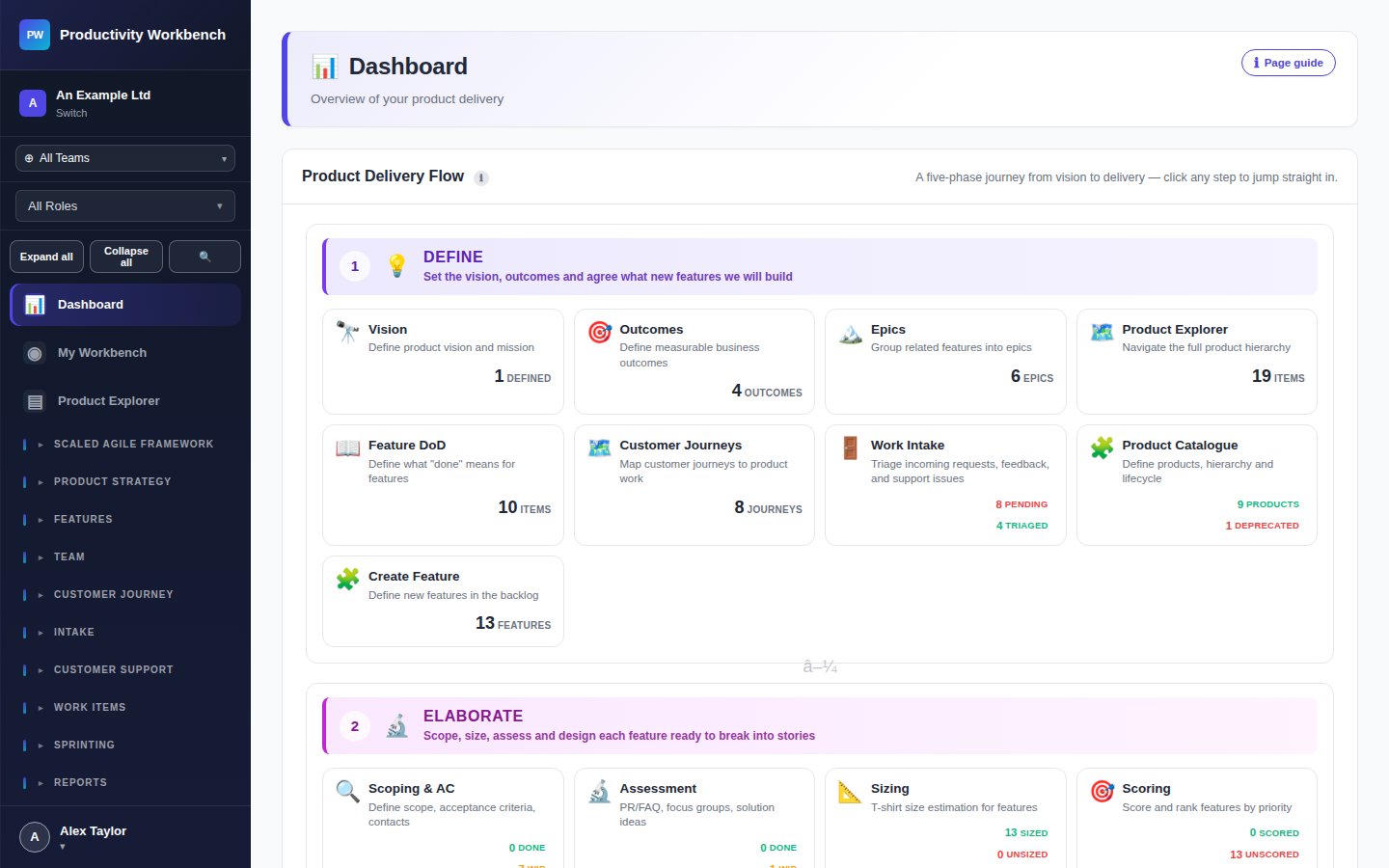
What can you do with Productivity Workbench?
The platform covers every stage of product delivery, organised around a clear entity hierarchy:
What's included in your tier?
- 1 workspace, up to 10 users
- Feature & Story management
- Sprint planning, board, burndown, retros
- Release notes
- Community support
- Everything in Free
- 1 workspace, up to 200 users
- Vision, Outcomes, Epics hierarchy
- Product Catalogue
- WSJF Prioritisation & Roadmap
- Capacity planning & Scheduling Assistant
- Work Intake & Triage
- User Journeys, Personas, Value Streams
- Customer Support, Tickets & Portal
- Email support, business hours
- Everything in Business
- Unlimited users
- Organisation Hub for multi-workspace governance
- Workspace templates and guided enterprise setup
- Scaled Agile Framework (SAFe)
- Jira, GitHub, GitLab & ServiceNow integrations
- Enterprise governance: risk register, controls, evidence packs
- Executive summary & control coverage reports
- SSO, MFA, IP allow-list enforcement, ringfencing
- AI-powered assistance (BYOK)
- Priority support & SLA
- Guided onboarding
How to navigate this documentation
Use the sidebar on the left to jump between sections. The tier selector above filters guidance to what's relevant to your subscription.
- Getting Started — set up your workspace and follow the happy path to your first sprint.
- How To? — step-by-step guides for common Product Owner activities.
- Page Guides — a reference for every page in the app.
- Quick Reference — glossary, tier comparison, and FAQ.
Account & Workspace Setup
Get your team up and running in minutes. This guide covers creating an account, configuring your first workspace, and inviting your colleagues.
Create your account
Navigate to productivityworkbench.com and click Get Started. Enter your name, email address, and a secure password. You'll receive a verification email — click the link to activate your account.
Create your first workspace
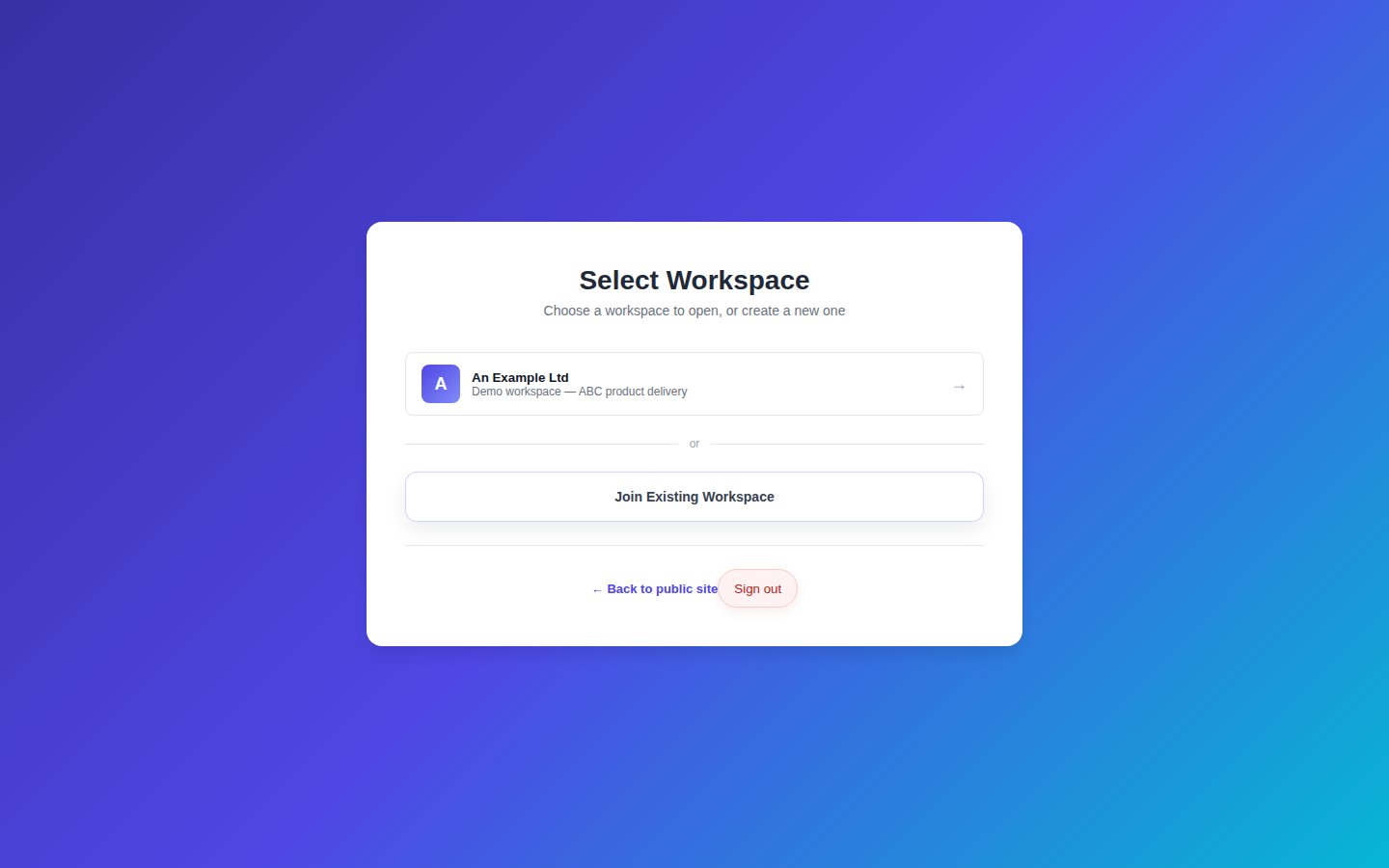
After email verification you are taken to the Workspaces screen. A workspace is an isolated environment for your team. Click Create Workspace and provide:
- Name — your product or team name
- Description — the scope or remit of that workspace
- Tier — Free, Business, or Enterprise
- Optional sample data — useful for evaluation and onboarding
Use the guided Enterprise setup Enterprise
Enterprise workspace creation uses a guided multi-step flow. After entering the workspace details, you can optionally choose a reusable template and place the new workspace into your organisation structure.
- Choose a template — apply an organisation template or start blank
- Choose a parent node — place the workspace under the right division, programme, or team branch
- Auto-apply defaults — hierarchy depth and entity rules can be inherited from the chosen template
Configure your hierarchy level Business+
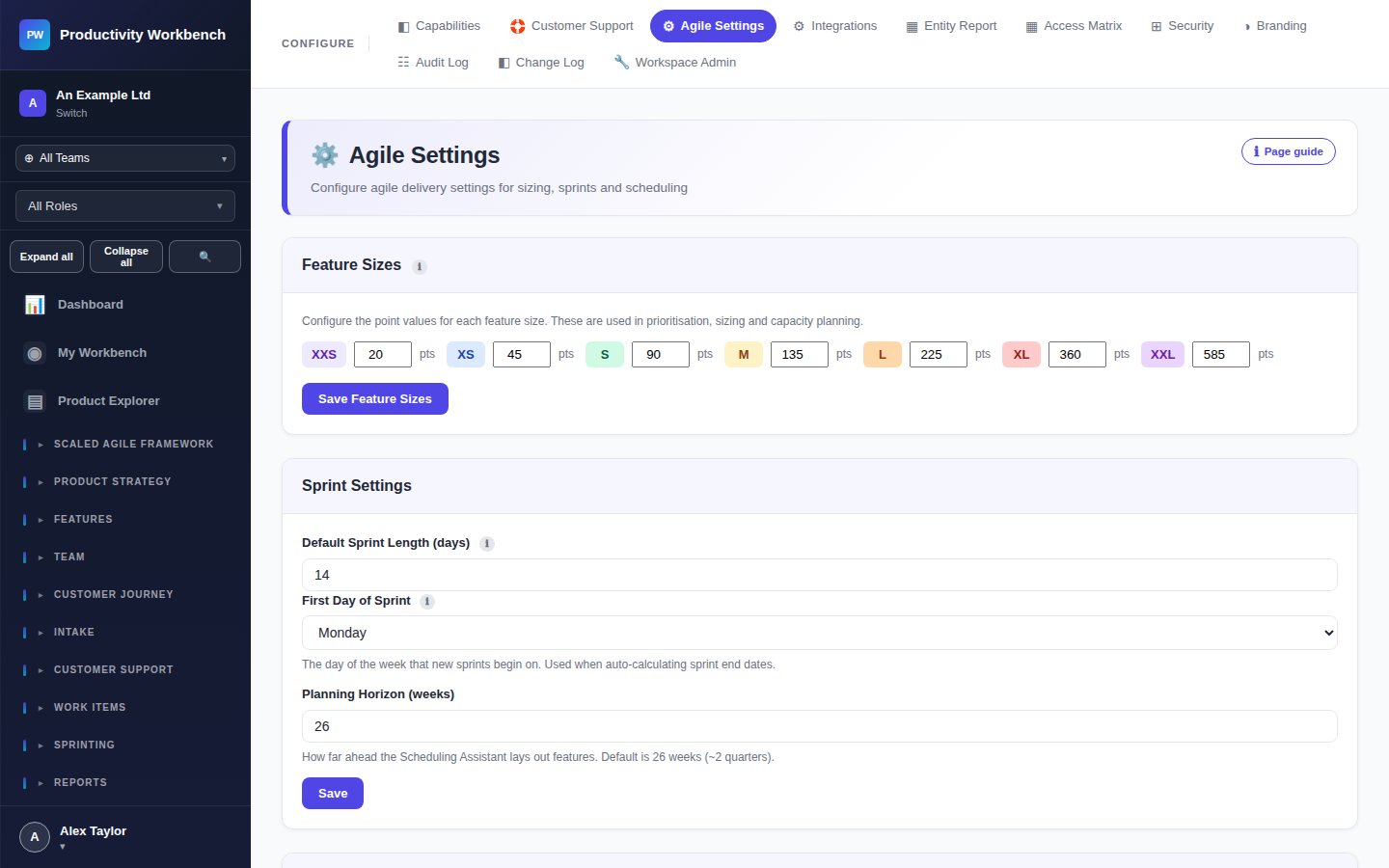
Go to Admin → Agile Settings. The Hierarchy Level setting controls which entity tiers are visible. Choose the option that matches your organisation's planning style:
- Stories + Features — smallest footprint, ideal for single-product teams
- Stories + Features + Epics — recommended for most teams
- Full hierarchy — Vision, Outcomes, Epics, Features, Stories
Invite team members
Go to Admin → User Administration. Click Invite User and enter their email address. They will receive an invitation link. Newly invited users default to the Contributor role.
Configure roles & permissions
Navigate to Admin → Access Matrix. Each role (Admin, Product Owner, Contributor, Viewer) has a default set of page-level permissions. You can customise these to control exactly who can read and write each area of the app.
Customise branding
Go to Admin → Branding to set your workspace colours, navigation icons, and card styles. Changes apply instantly and are visible to all workspace members.
Open the Organisation Hub Enterprise
Enterprise admins get a separate organisation context for multi-workspace governance. Use it to manage structure, templates, branding policy, support, notifications, and security baselines across linked workspaces.
Your First Sprint (Happy Path)
This walkthrough takes you from a blank workspace to a completed sprint — the full happy path for a Product Owner. Follow each phase in order.
Product Setup
Define your Product Vision Business+
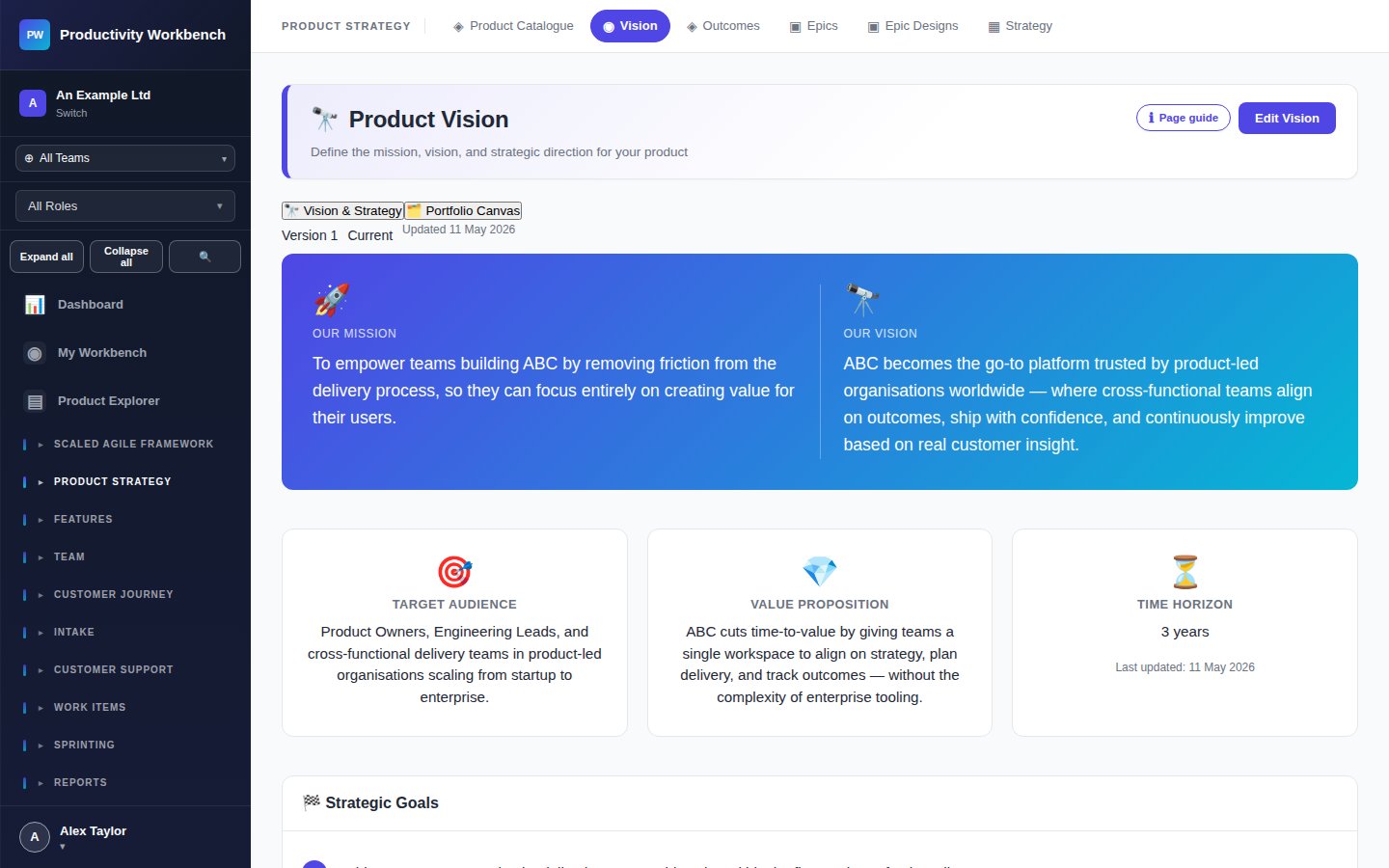
Navigate to Product Strategy → Product Vision. Write a clear, concise vision statement that describes the purpose and ambition of your product. The vision is the anchor point for all downstream planning.
- Vision statement — one or two sentences on what you're building and for whom
- North Star metric — the single number that tells you the product is succeeding
- Target users — brief persona summary
Add Outcomes Business+
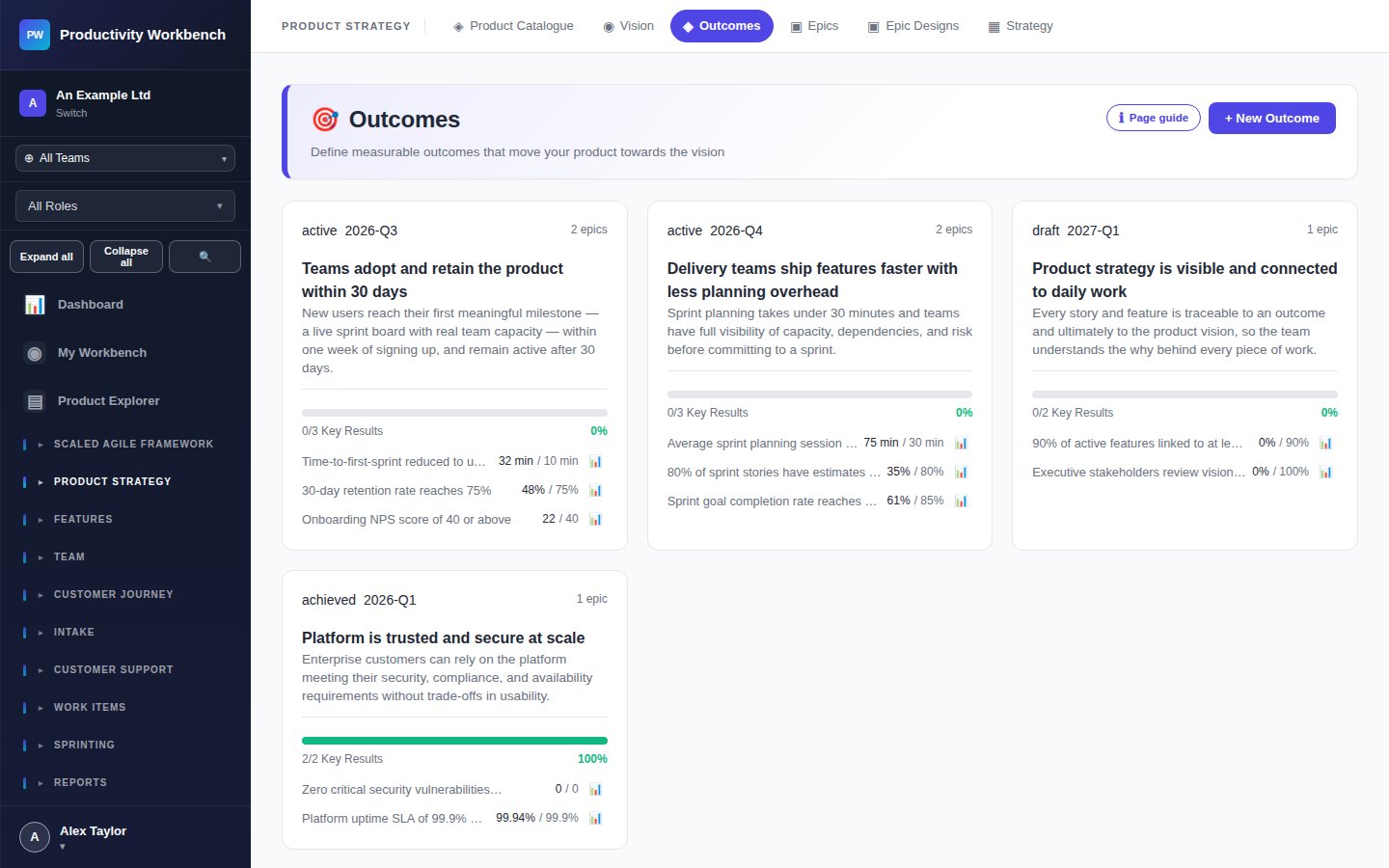
Go to Product Strategy → Outcomes. Outcomes are measurable business goals that sit beneath your Vision. Each outcome should state a desired behaviour change and how you'll measure it.
- Aim for 3—5 outcomes per vision cycle
- Link each outcome back to the product vision
- Set a target metric and due date
Create Epics Business+
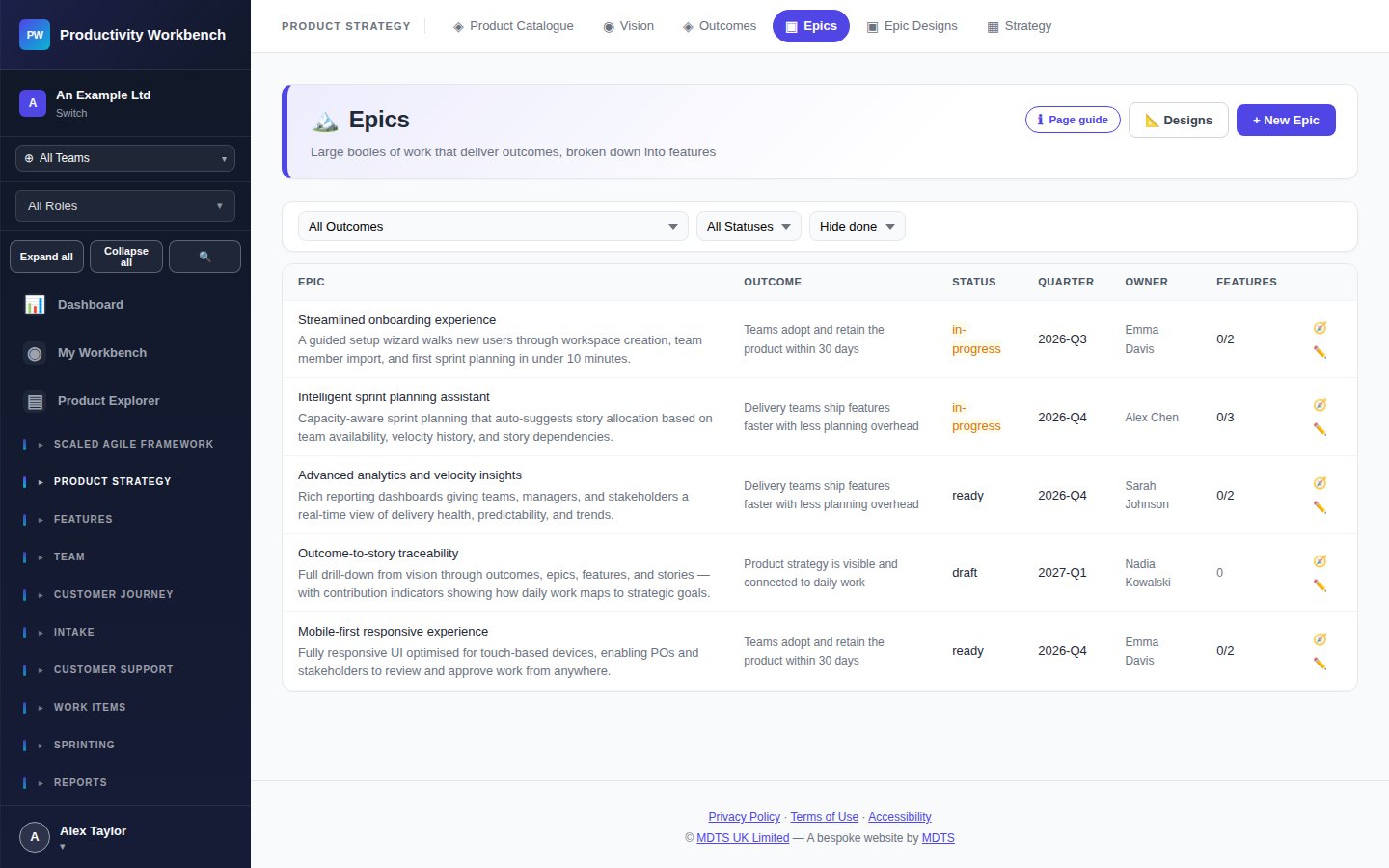
Go to Product Strategy → Epics. Epics are large bodies of work that deliver one or more outcomes. They span multiple sprints and break down into features.
- Give each epic a concise title and a hypothesis statement
- Link to the relevant outcome
- Set a priority and rough size (if known)
Feature Definition
Create your first Feature
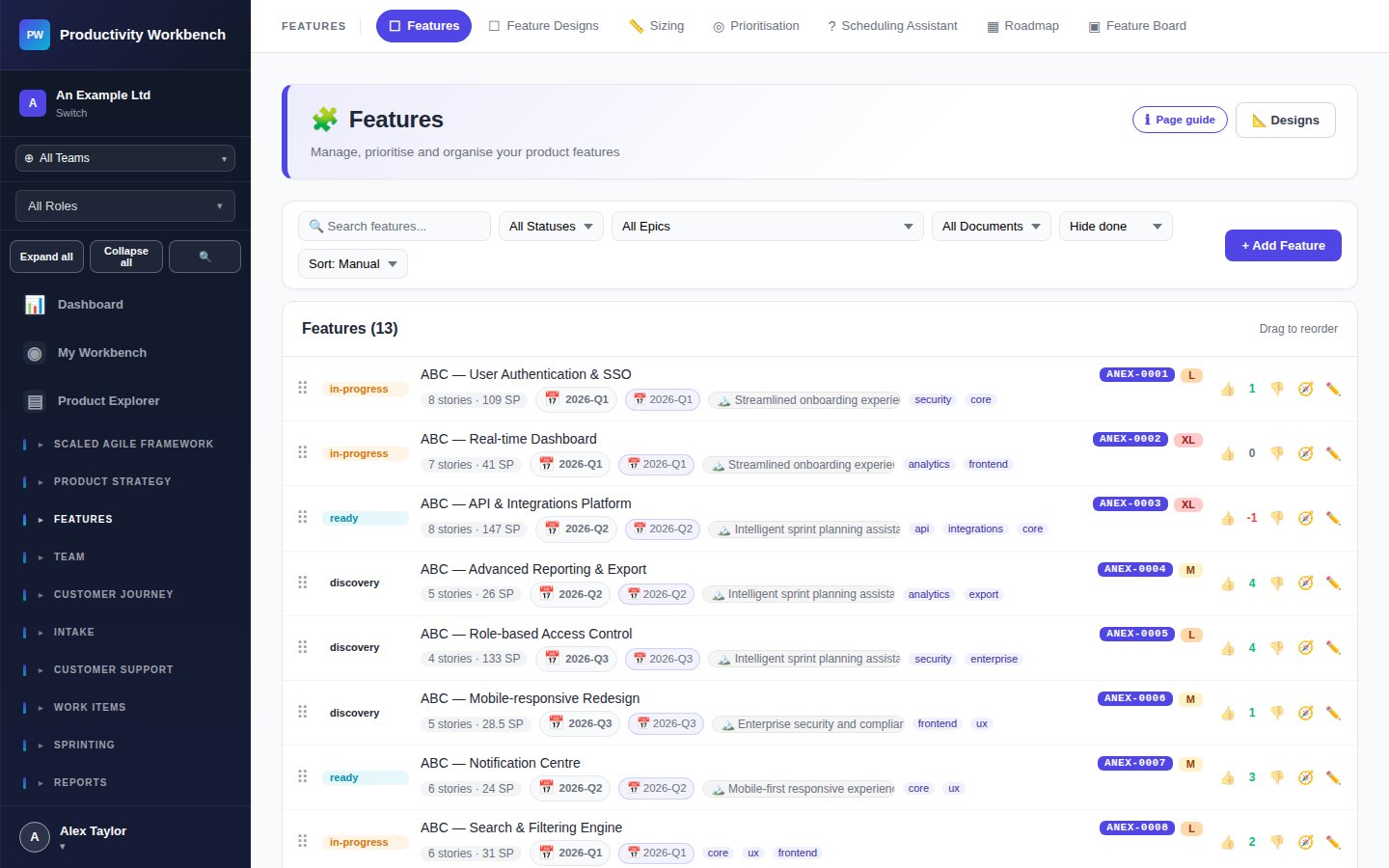
Navigate to Features. Click Add Feature. Every feature moves through a five-section lifecycle — fill in as much as you know now and refine it over time.
- Discovery — problem statement, hypothesis, affected users
- Definition — scope, acceptance criteria, out-of-scope items
- Design — wireframe links, design decisions, open questions
- Development — technical notes, API changes, dependencies
- Done — release notes, learnings, outcome metrics
Set feature status
Use the Status dropdown on the feature to track where it is in your workflow:
Break Into Stories
Create Work Items
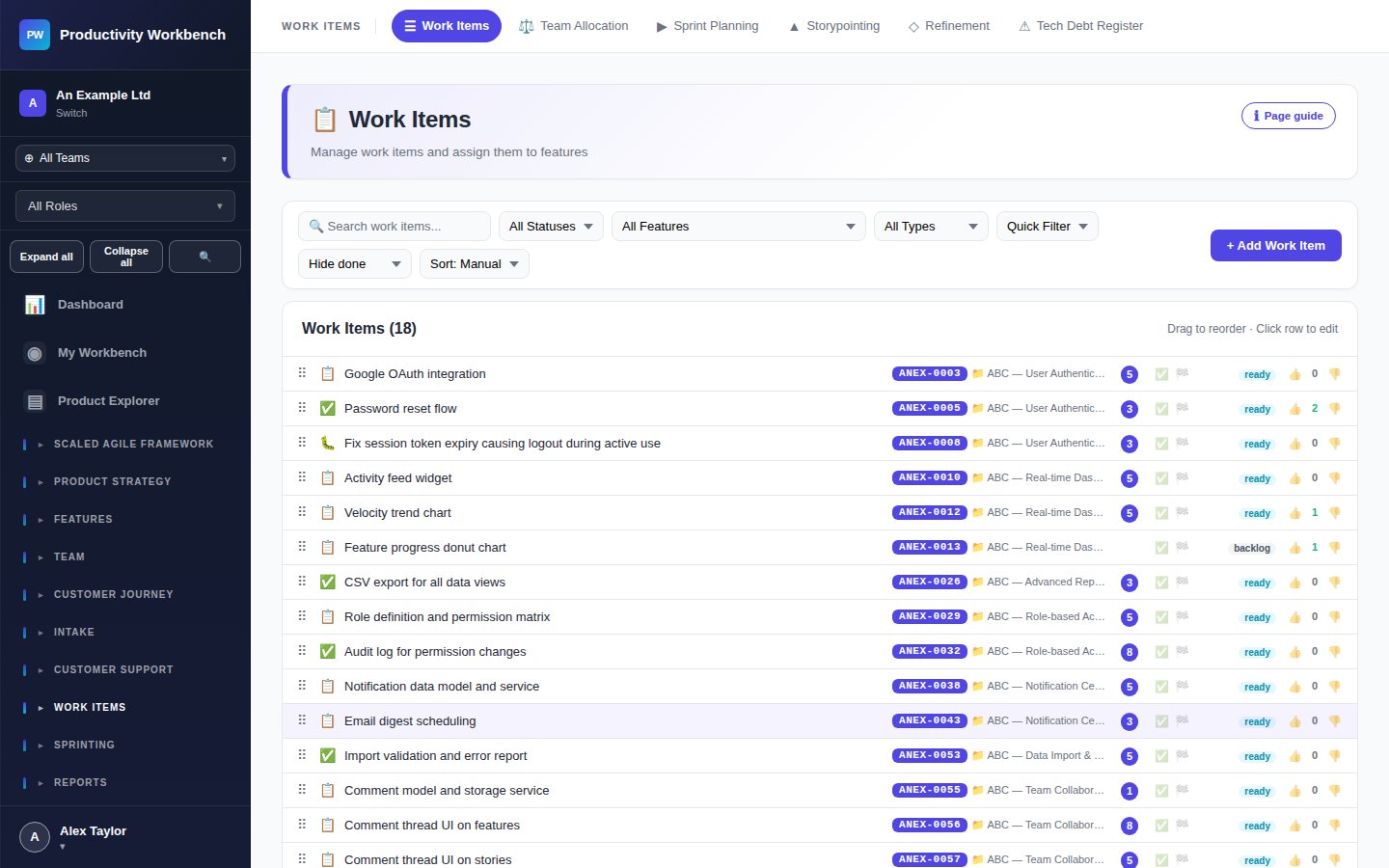
Go to Work Items (or open the feature and navigate to its Stories tab). Work items can be stories, bugs, spikes, or tech-debt entries.
- Write the story in As a [user], I want [action], so that [benefit] format
- Add acceptance criteria as bullet points
- Assign a type (Story / Bug / Spike / Tech Debt)
- Tag the work item with labels for filtering later
Set Definition of Ready
Go to Admin → Story Standards (DoR) to define the criteria a work item must meet before it can enter a sprint. The DoR checklist is shown on each work item popup.
Sizing
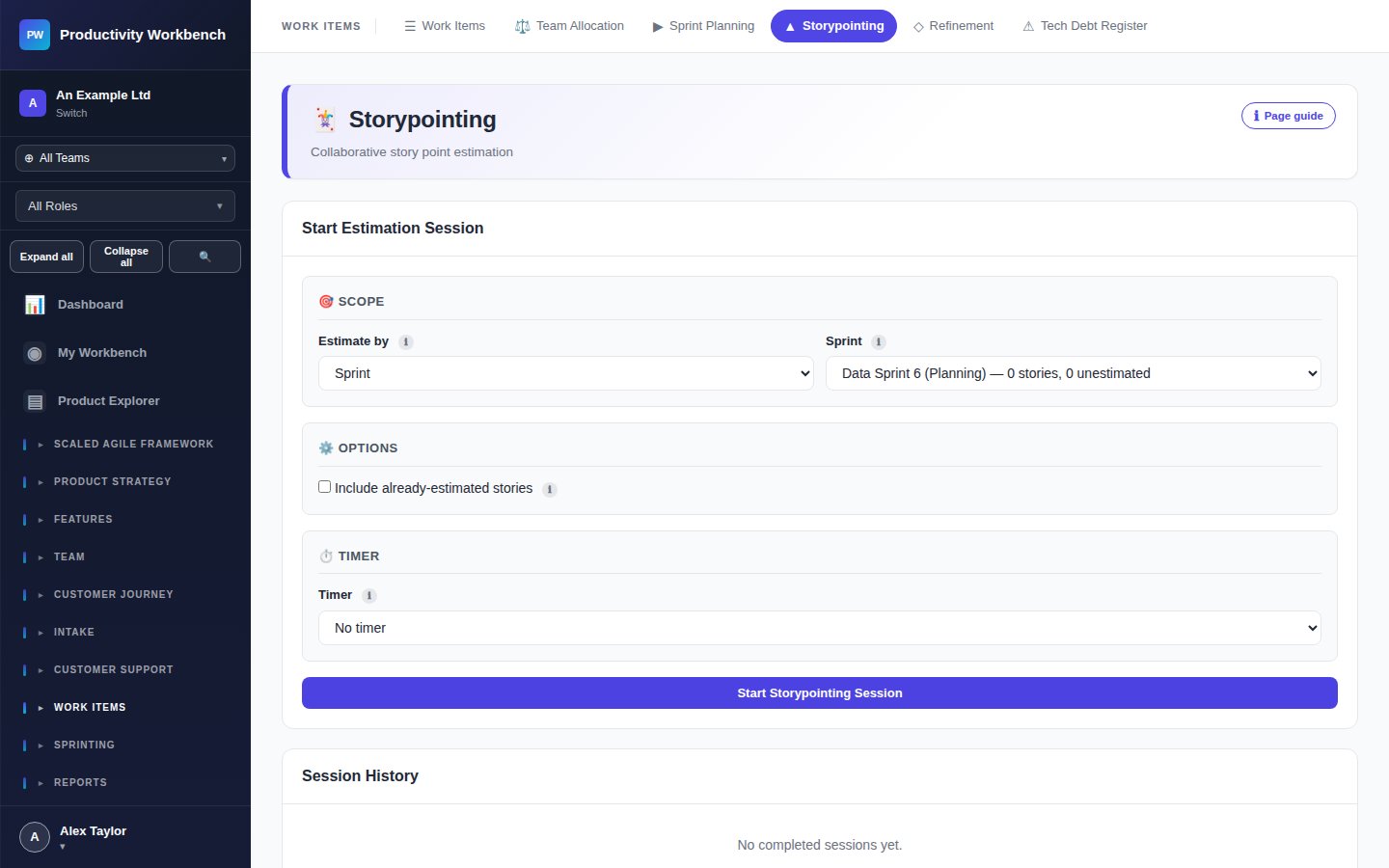
Run a Storypointing session
Navigate to Work Items → Storypointing. Create a new session, add the stories you want to size, and share the session link with your team. Each person votes privately; the facilitator reveals all votes simultaneously (Planning Poker style).
Size Features Business+
Go to Features → Sizing. Assign a T-shirt size (XS → XXL) or story-point estimate to each feature. This feeds the Scheduling Assistant and WSJF prioritisation.
Prioritisation
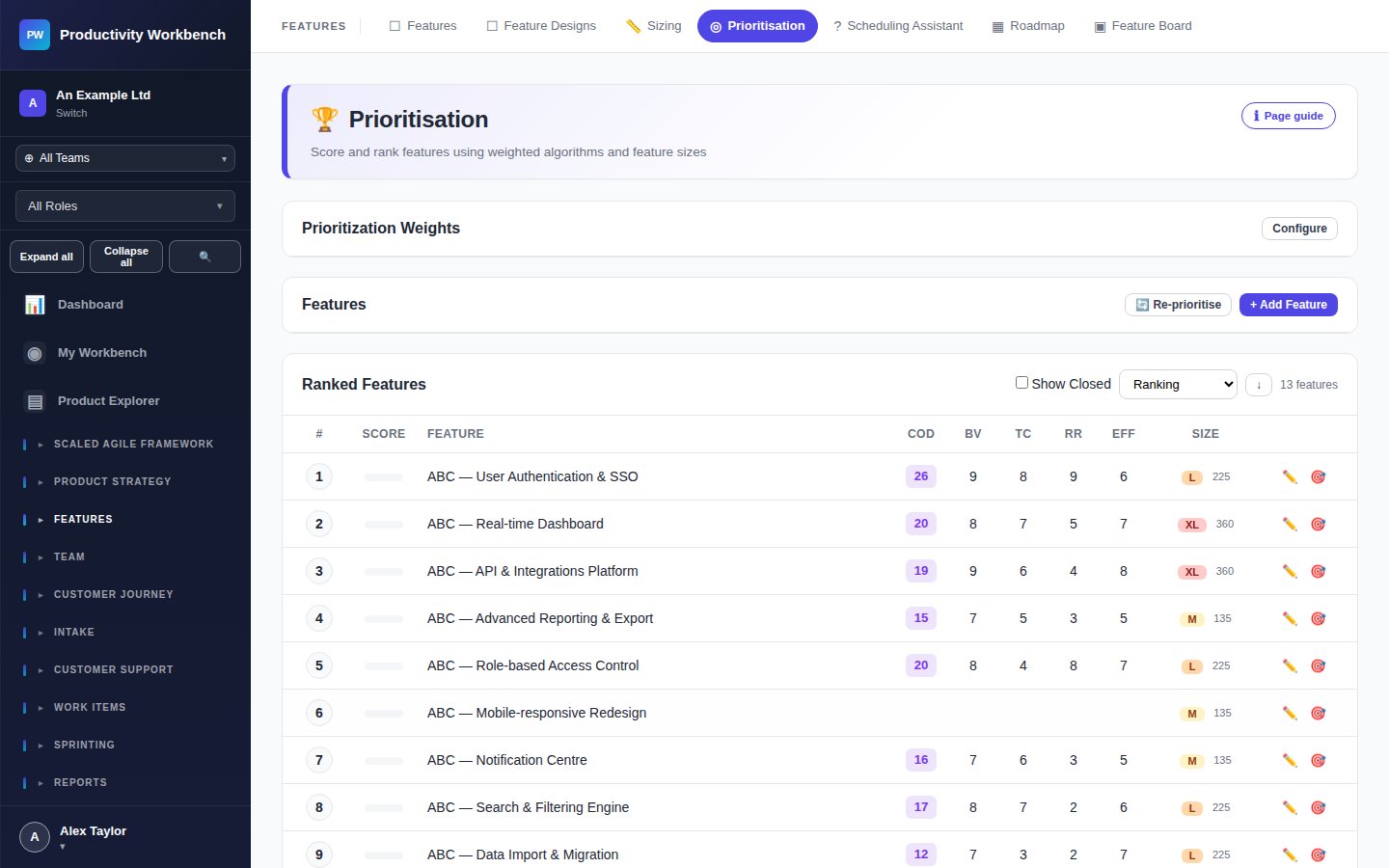
Score features with WSJF Business+
Go to Prioritisation. WSJF (Weighted Shortest Job First) ranks features by dividing Cost of Delay by Job Duration. Fill in:
- Business Value (1—21) — the direct revenue or strategic value delivered
- Time Criticality (1—21) — how fast the value decays if delayed
- Risk Reduction / Opportunity Enablement (1—21) — future options opened
- Job Size (1—21) — estimated effort (derived from sizing)
The platform calculates the WSJF score and ranks your backlog automatically. You can drag items to manually override.
Sprint Planning
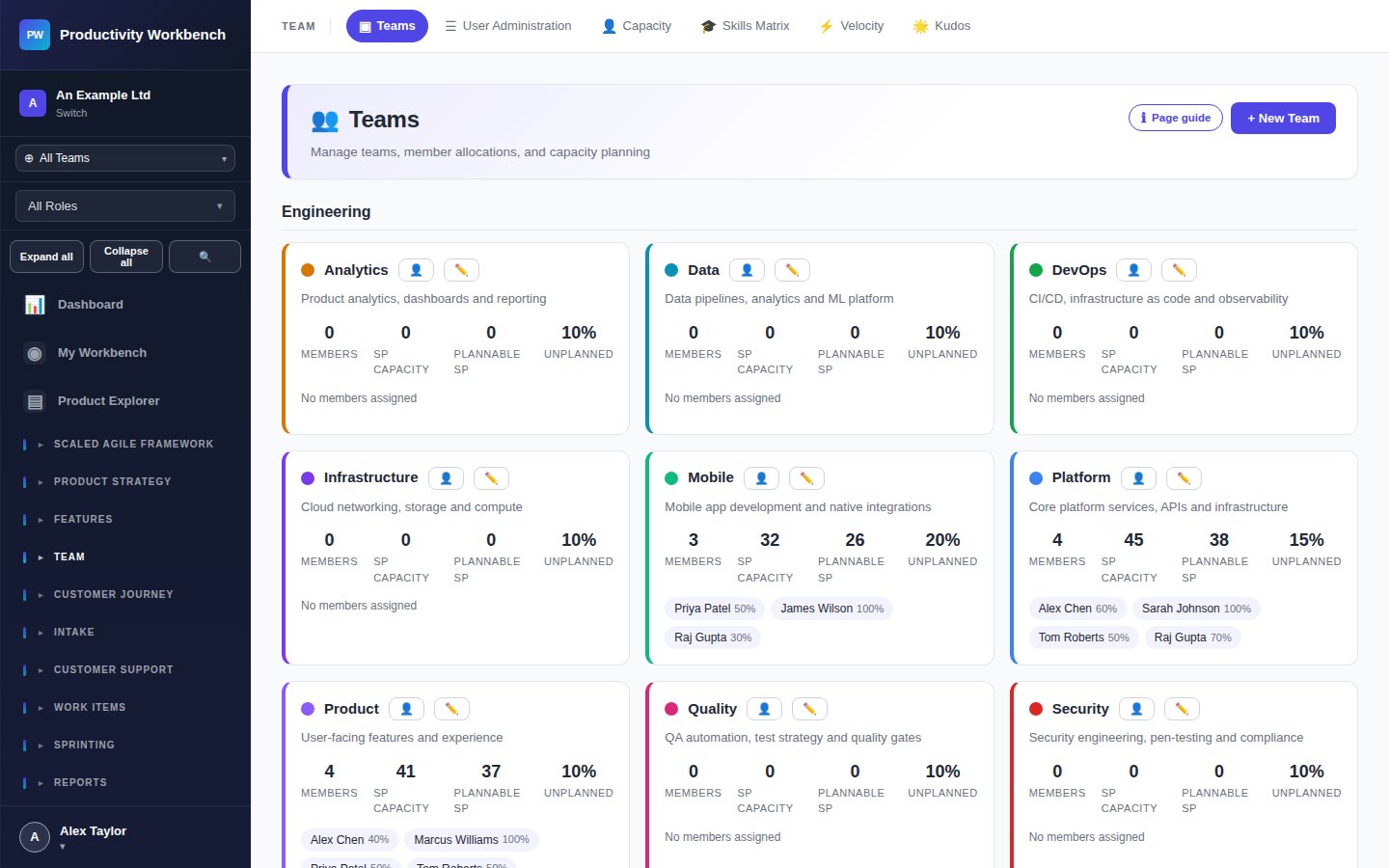
Set up your team & capacity
Go to Teams. Create your team, add members, and configure working days and availability for the sprint. The team's total capacity in story points is calculated automatically.
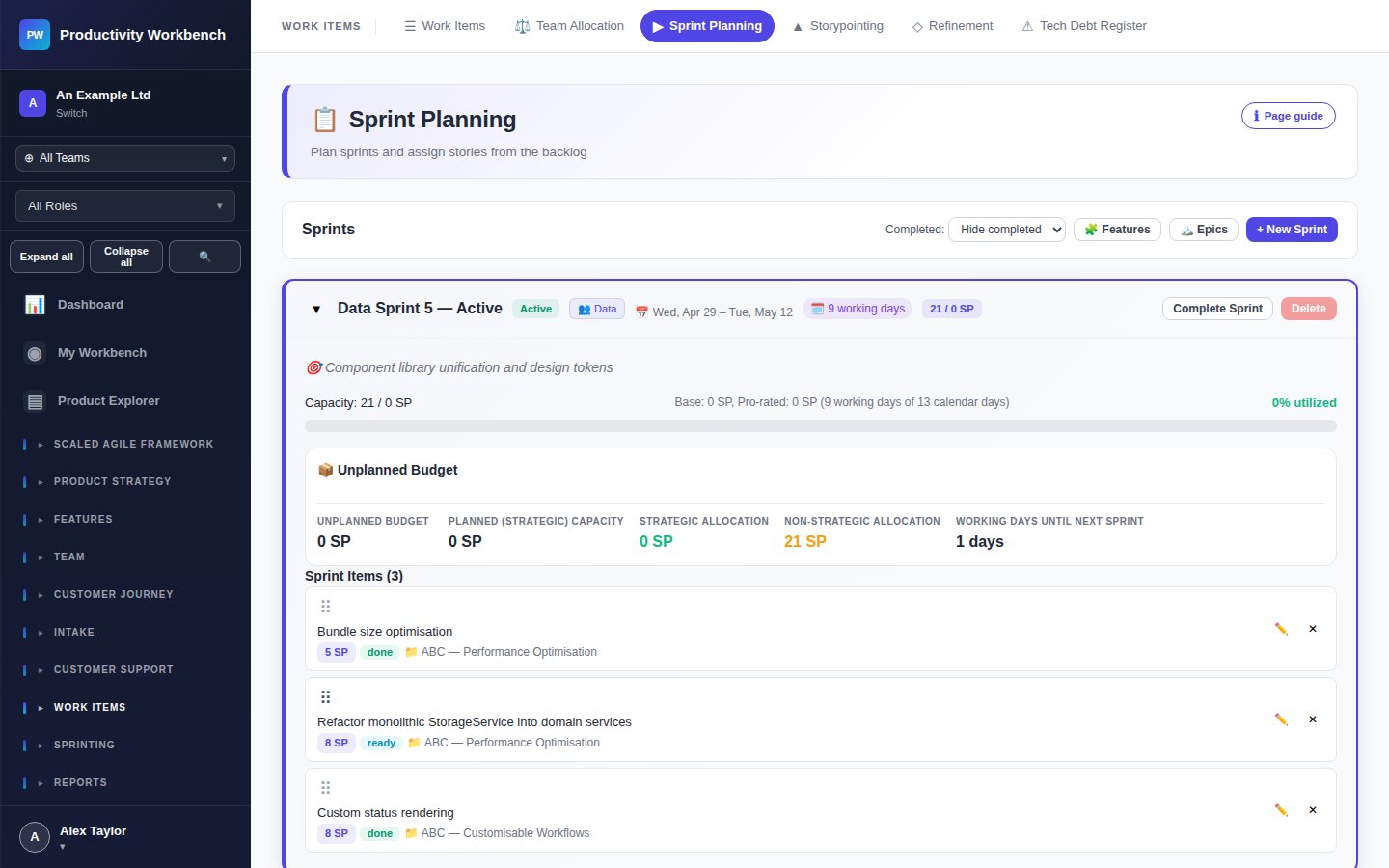
Create a Sprint & plan work
Go to Sprint Planning. Click New Sprint, set the start and end date, and give it a goal. The right-hand backlog shows your prioritised stories — drag them into the sprint. The capacity bar shows how loaded the sprint is against available team points.
Running the Sprint
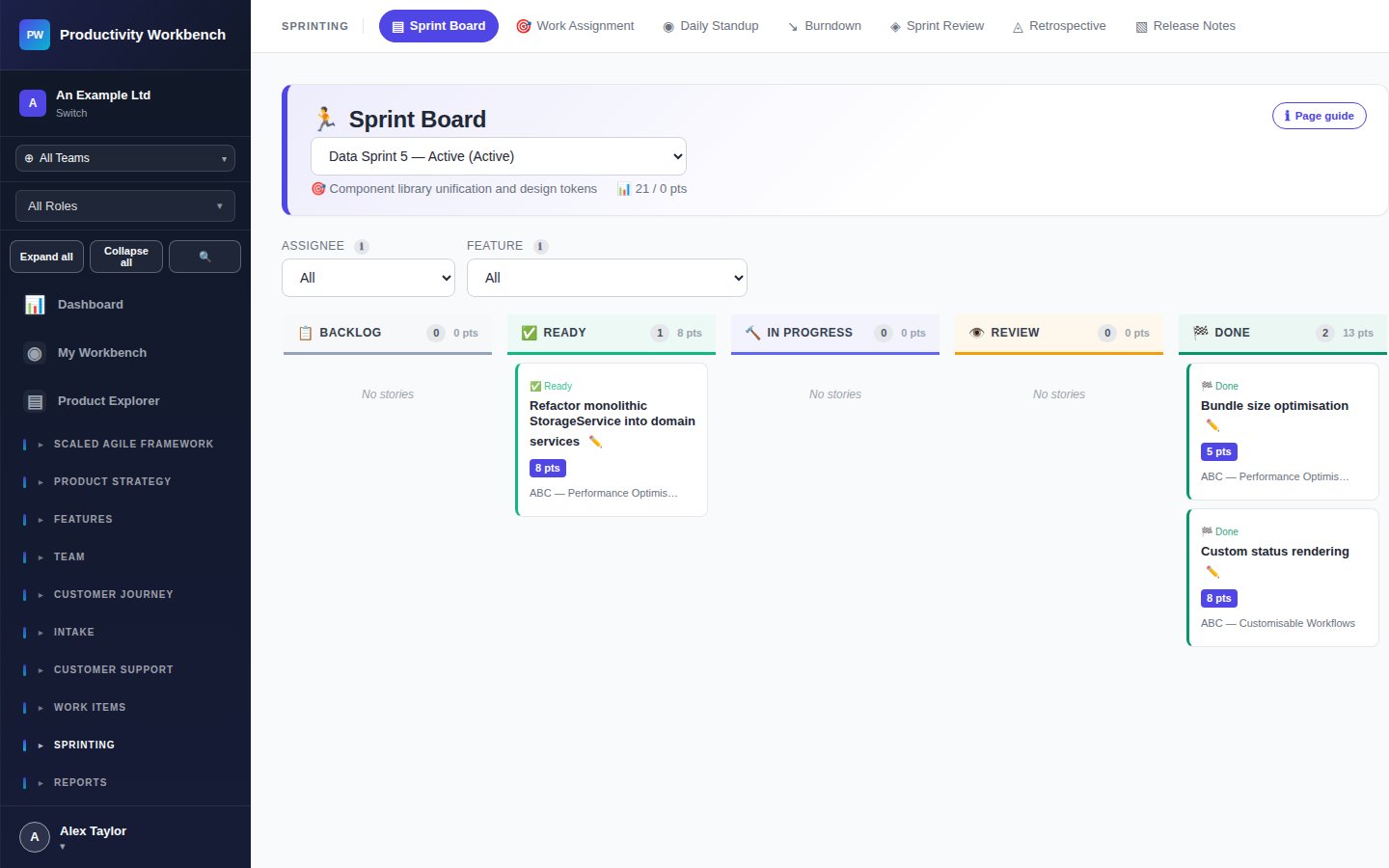
Track progress on the Sprint Board
Go to Sprint Board. Stories move across three columns: To Do → In Progress → Done. Team members can drag cards directly on the board. Blockers can be flagged with a red indicator.
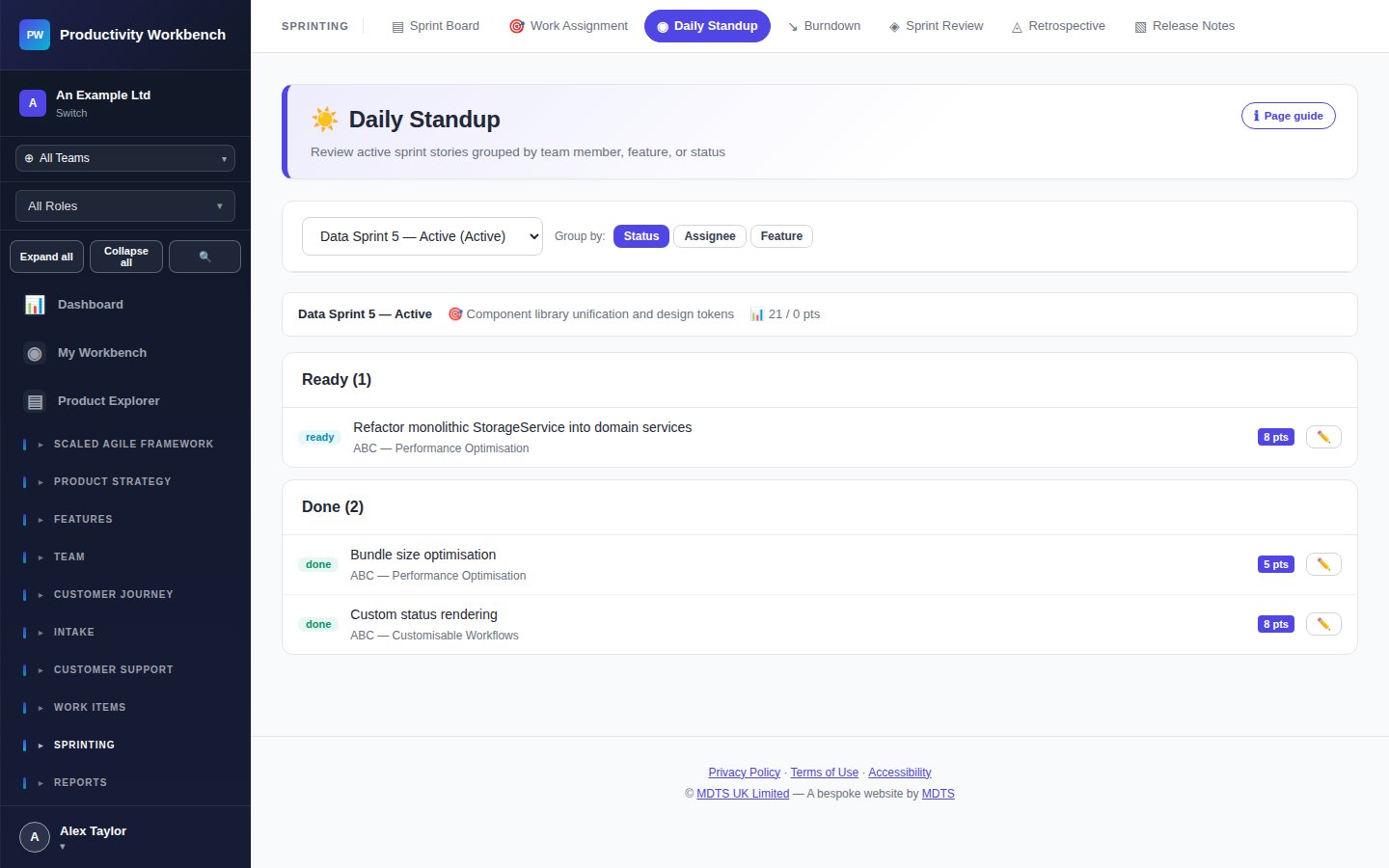
Run Daily Standup
Go to Daily Standup. The standup view shows each team member's assigned stories with Yesterday / Today / Blockers fields. Work through the team one by one. Standups are not saved as records — they are a real-time facilitation tool.
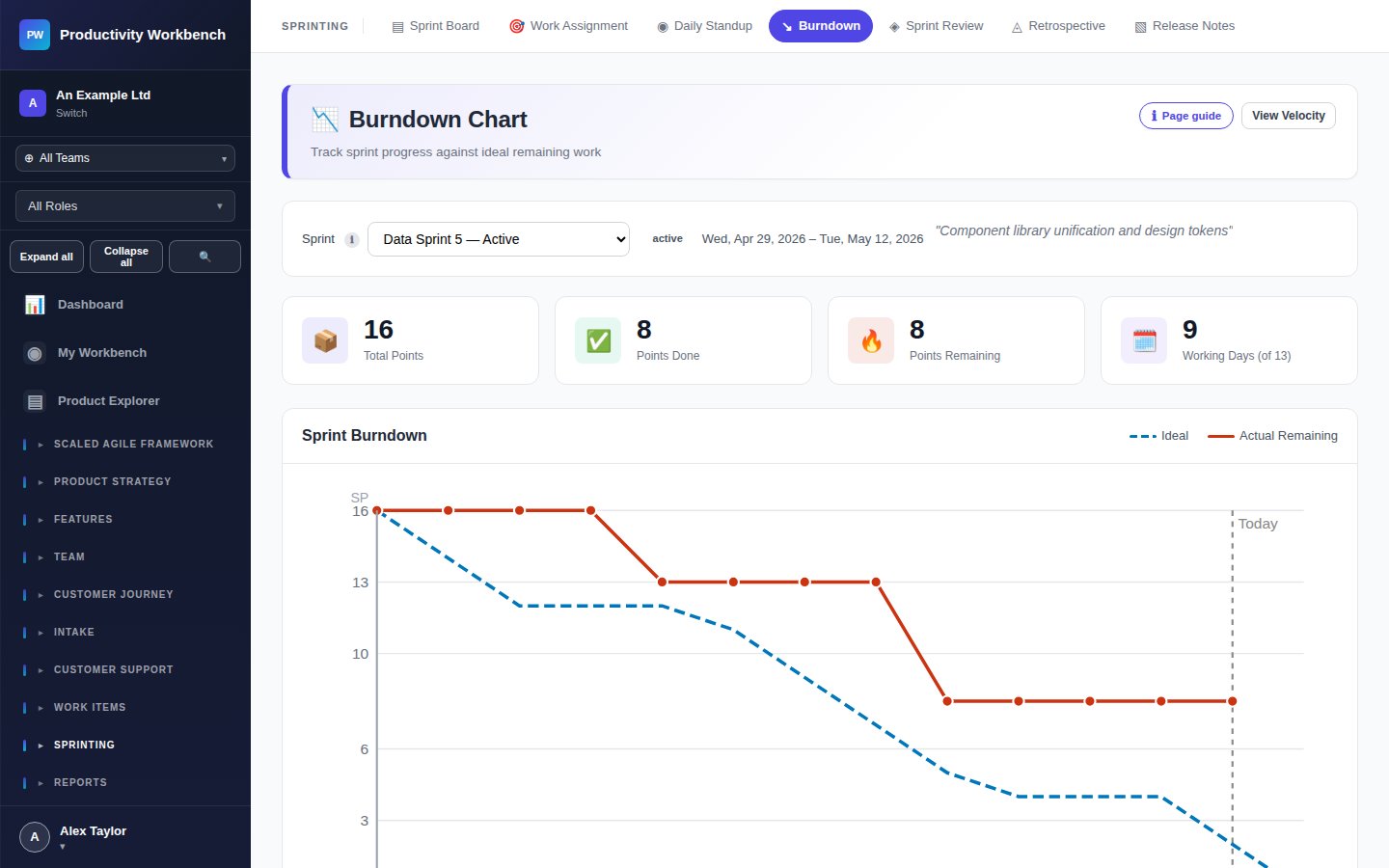
Monitor the Burndown
Go to Burndown. The burndown chart plots ideal remaining points vs. actual remaining points day by day. A line consistently above the ideal indicates the team is behind and you may need to renegotiate scope.
Closing the Sprint
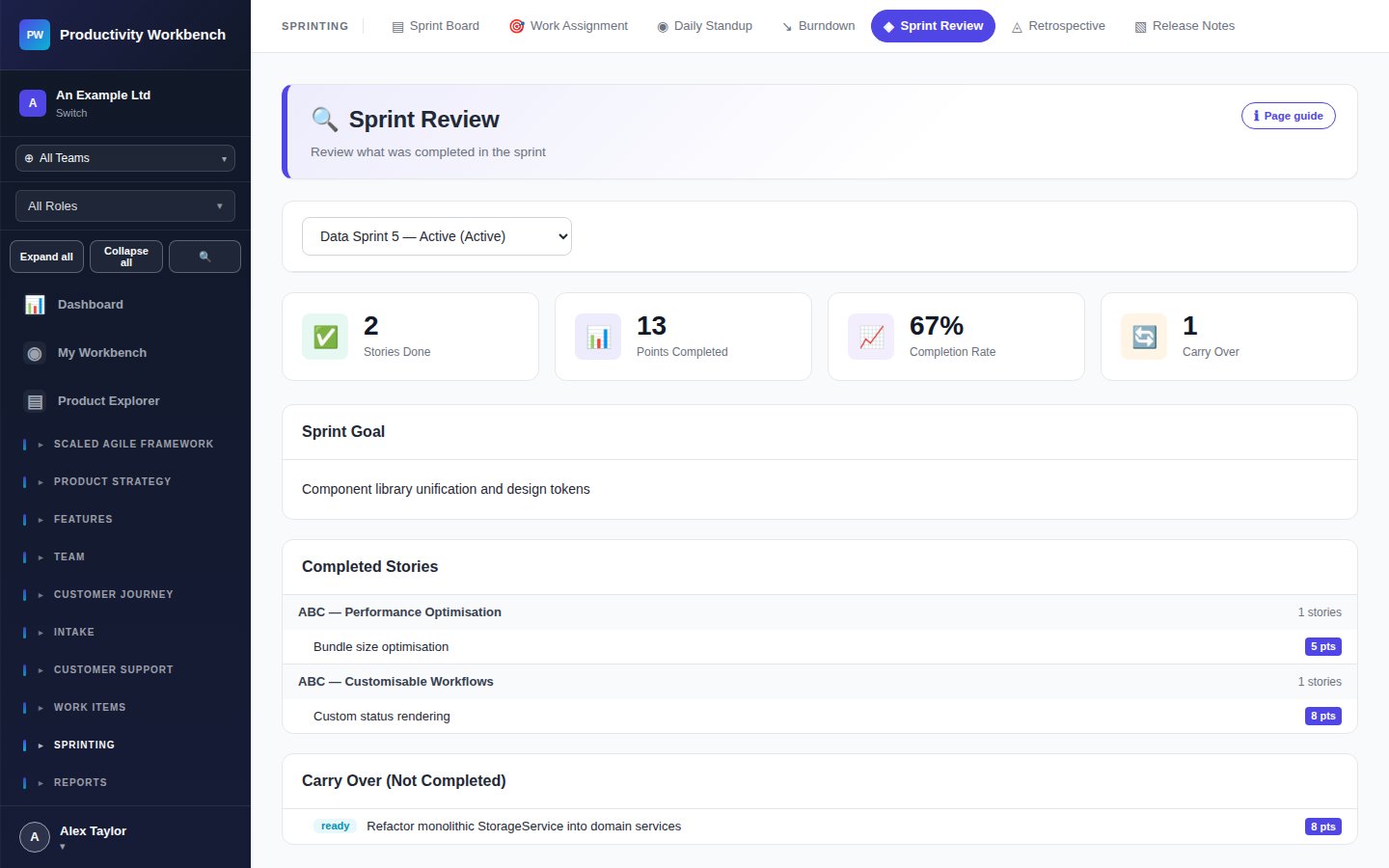
Sprint Review
Go to Sprint Review. Record which stories were completed, which are carried over, and any stakeholder feedback. The review is the formal acceptance ceremony — only stories that meet the Definition of Done should be marked complete.
Retrospective
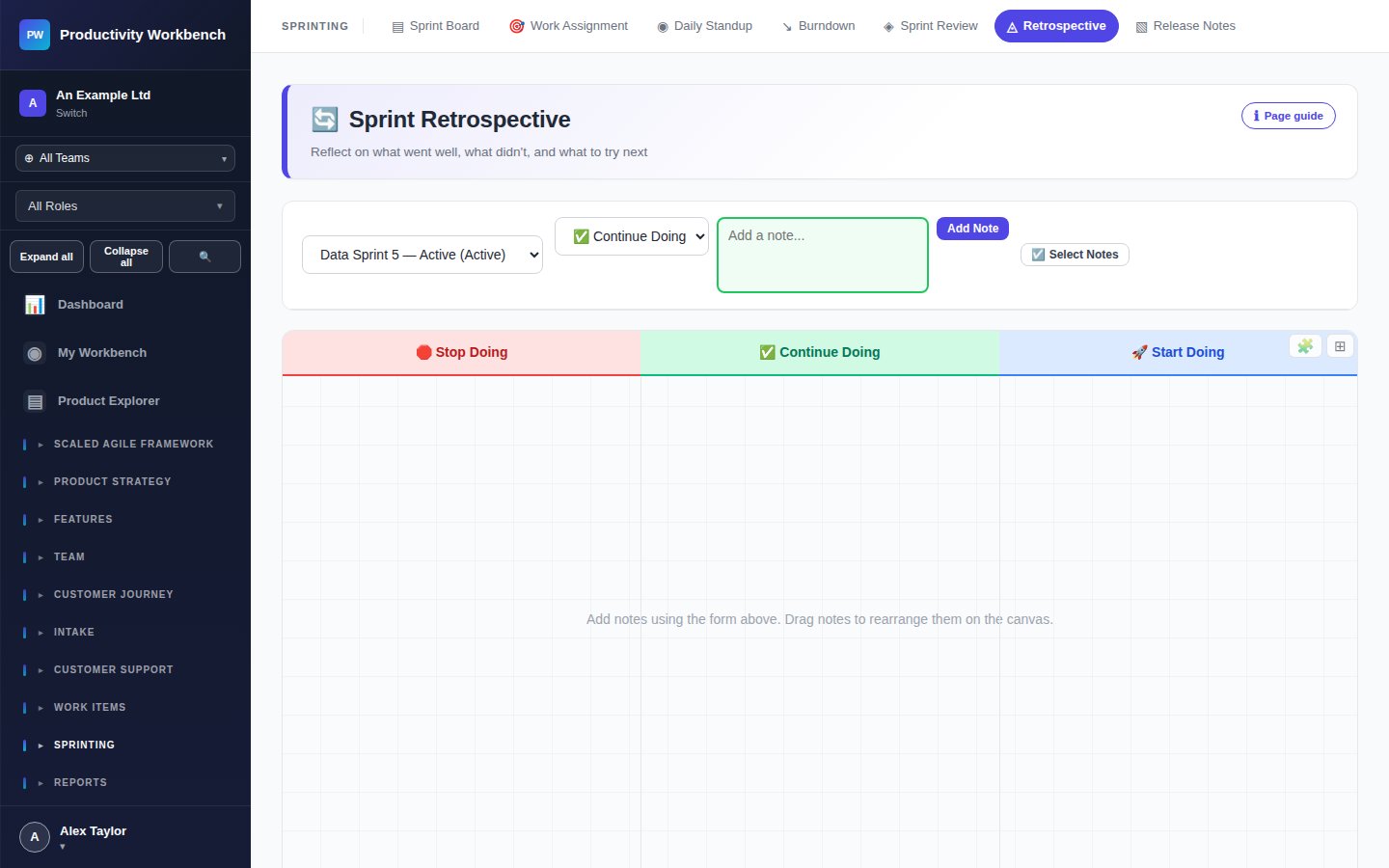
Go to Retrospective. Log what went well, what didn't, and improvement actions. Actions are tracked across sprints so you can see whether previous retrospective items were resolved.
Generate Release Notes
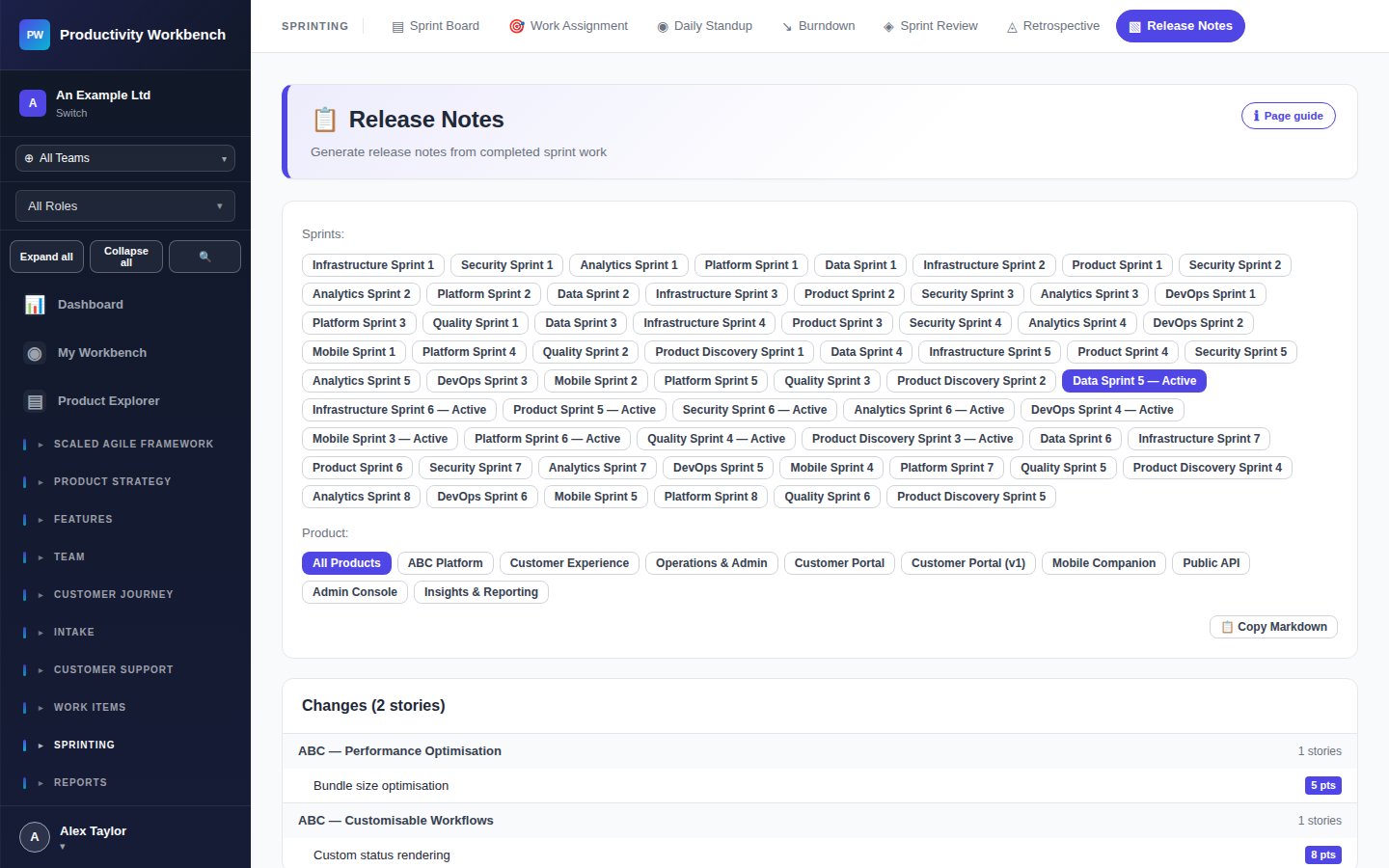
Go to Release Notes. Release notes are auto-populated from completed stories in the sprint. Review and edit them before publishing or copying to your stakeholder communications.
Archive the sprint & start the next
Return to Sprint Planning. Any incomplete stories can be dragged into the new sprint's backlog. Archive the completed sprint — it will remain visible in historical reports.