
Your First Sprint (Happy Path)
This walkthrough takes you from a blank workspace to a completed sprint — the full happy path for a Product Owner. Follow each phase in order.
Product Setup
Feature Definition
Create your first Feature
Navigate to Features. Click Add Feature. Every feature moves through a five-section lifecycle — fill in as much as you know now and refine it over time.
- Discovery — problem statement, hypothesis, affected users
- Definition — scope, acceptance criteria, out-of-scope items
- Design — wireframe links, design decisions, open questions
- Development — technical notes, API changes, dependencies
- Done — release notes, learnings, outcome metrics
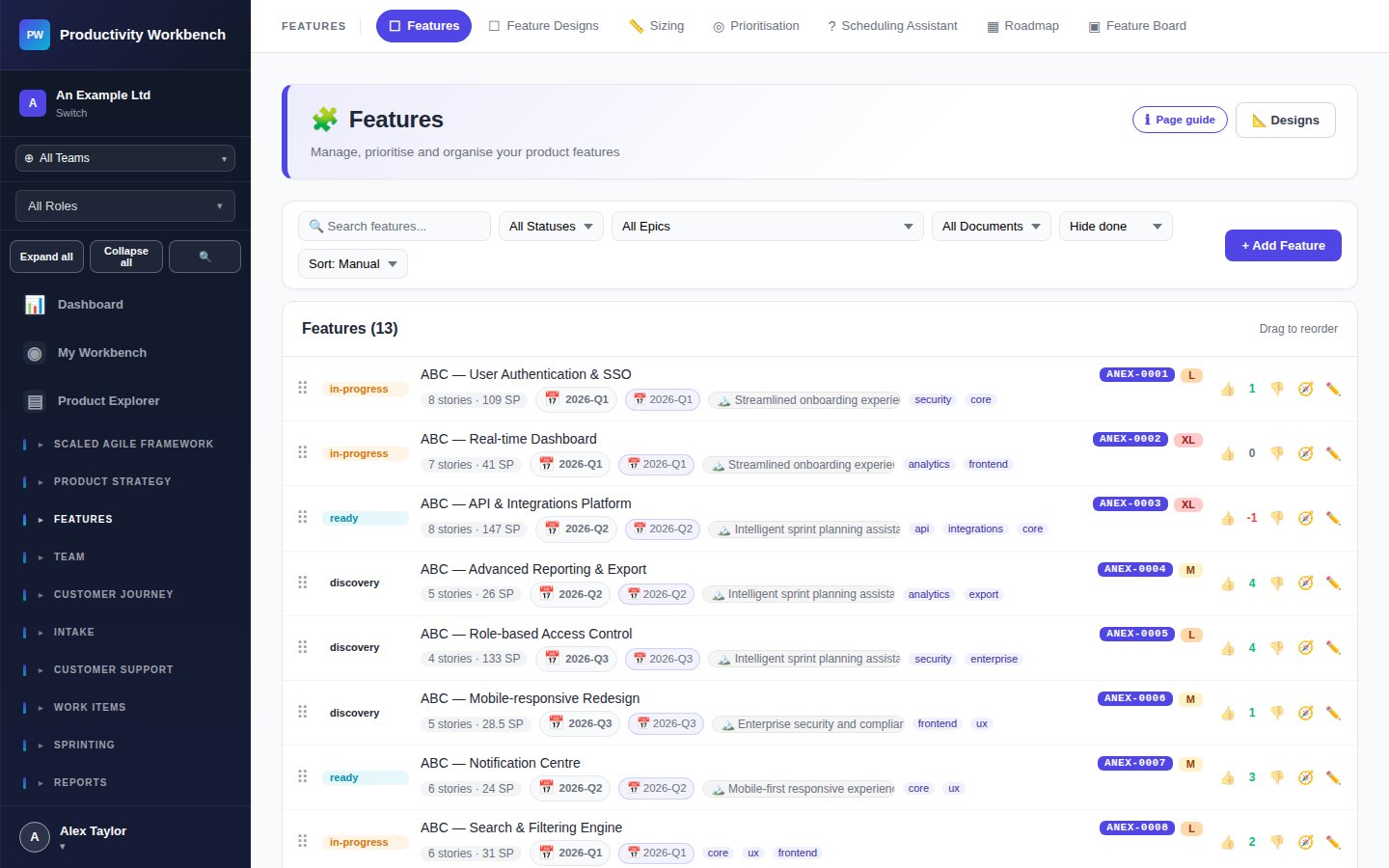
Set feature status
Use the Status dropdown on the feature to track where it is in your workflow:
Break Into Stories
Create Work Items
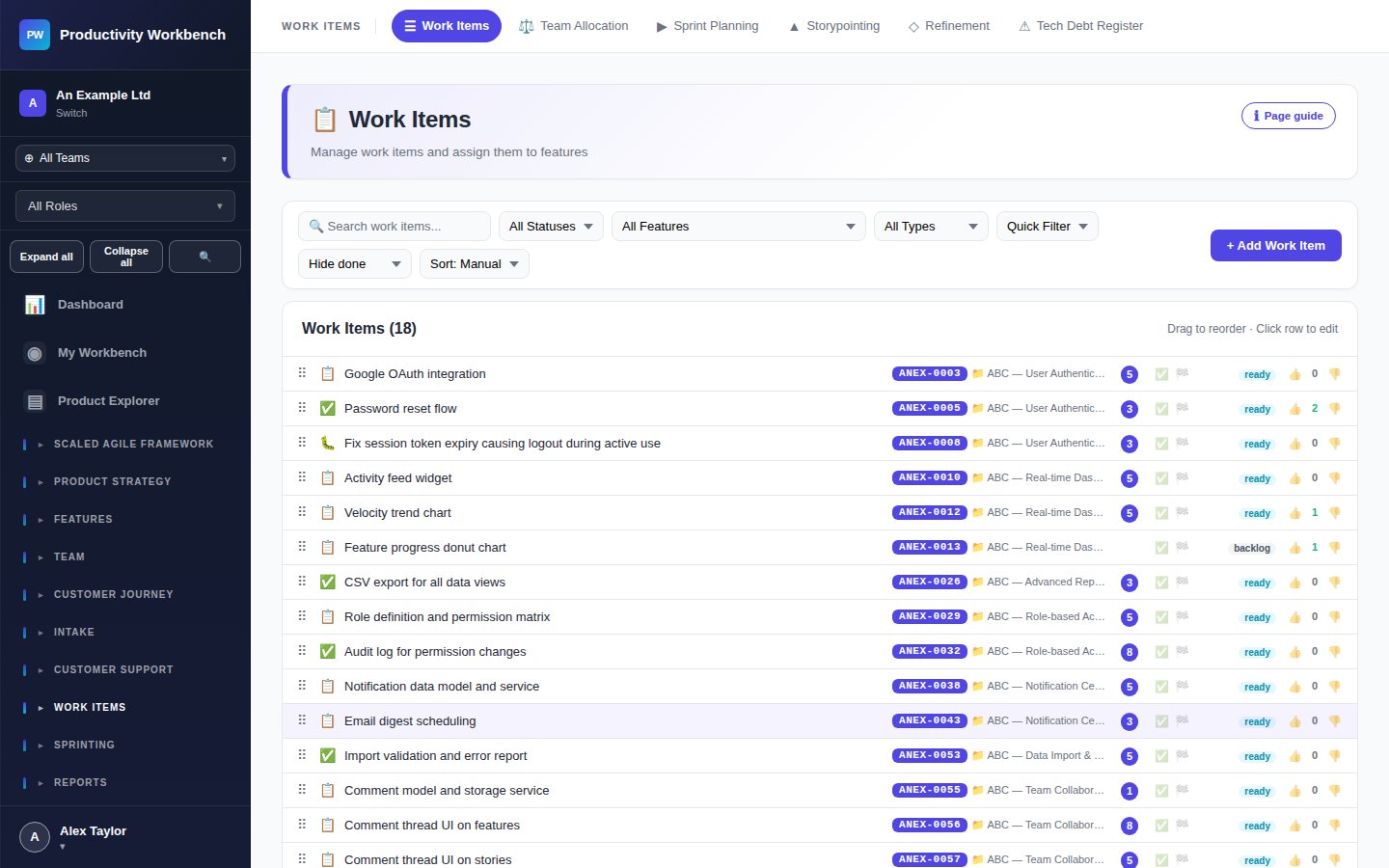
Go to Work Items (or open the feature and navigate to its Stories tab). Work items can be stories, bugs, spikes, or tech-debt entries.
- Write the story in As a [user], I want [action], so that [benefit] format
- Add acceptance criteria as bullet points
- Assign a type (Story / Bug / Spike / Tech Debt)
- Tag the work item with labels for filtering later
Set Definition of Ready
Go to Admin → Story Standards (DoR) to define the criteria a work item must meet before it can enter a sprint. The DoR checklist is shown on each work item popup.
Sizing
Run a Storypointing session
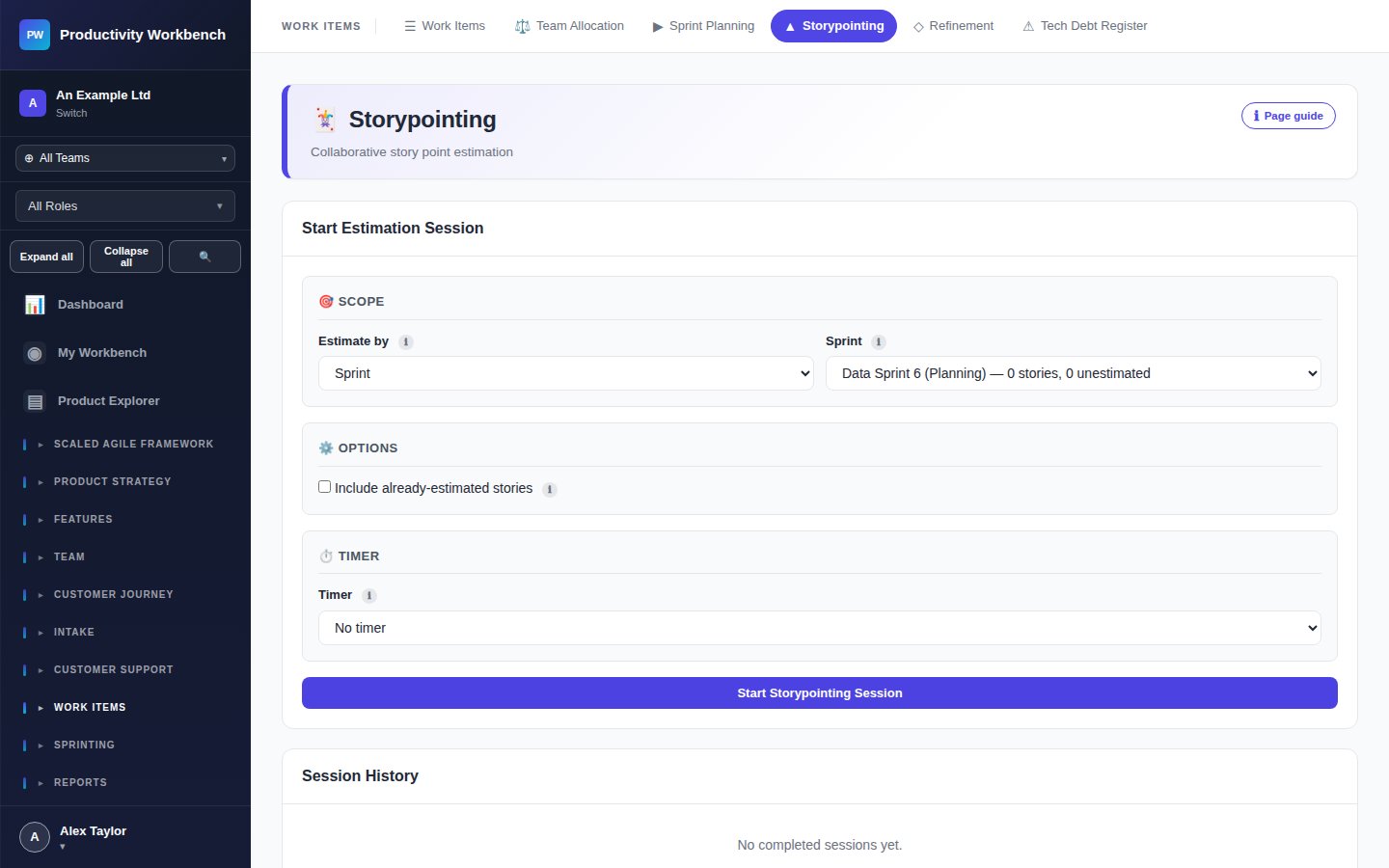
Navigate to Work Items → Storypointing. Create a new session, add the stories you want to size, and share the session link with your team. Each person votes privately; the facilitator reveals all votes simultaneously (Planning Poker style).
Prioritisation
Sprint Planning
Set up your team & capacity
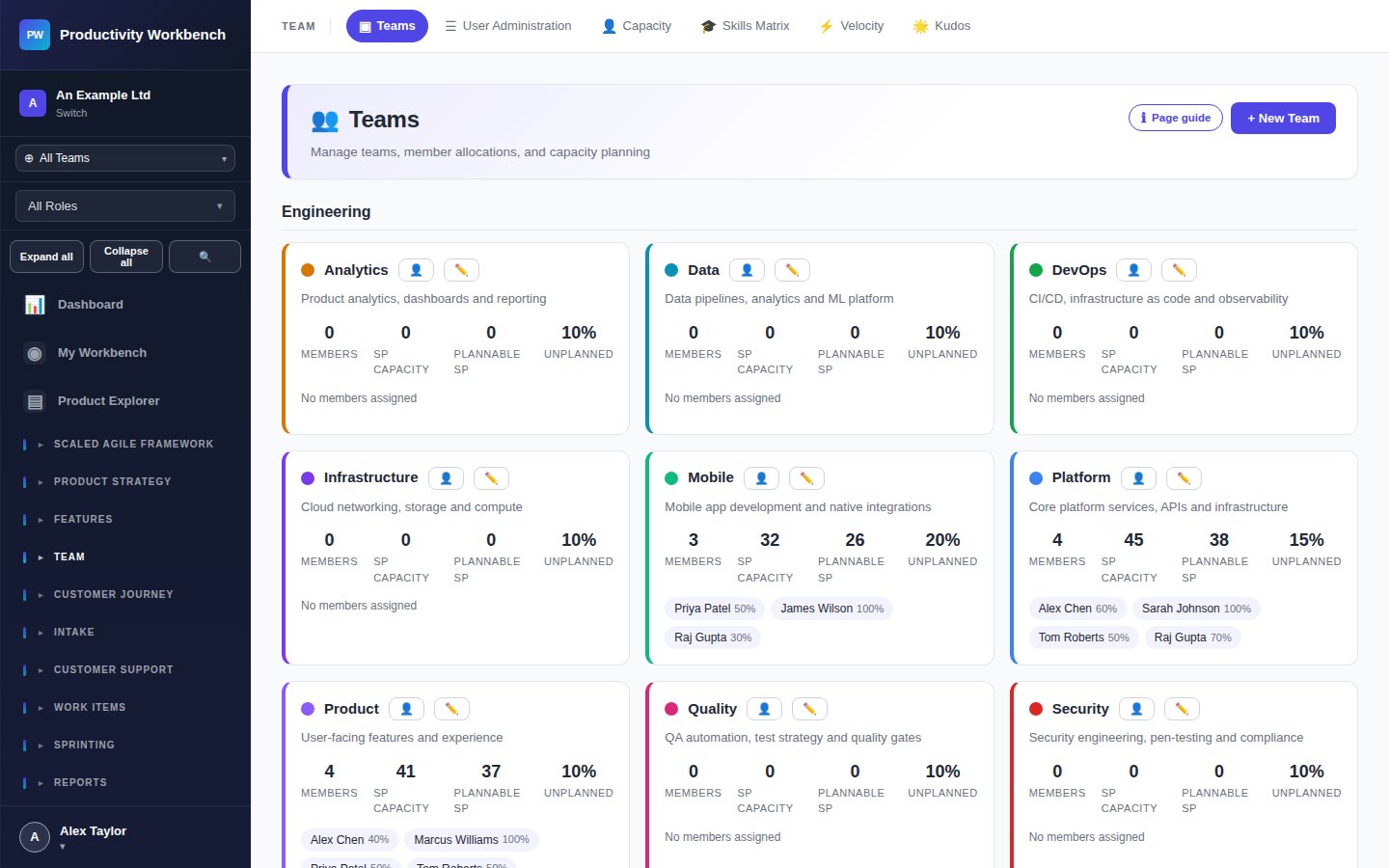
Go to Teams. Create your team, add members, and configure working days and availability for the sprint. The team's total capacity in story points is calculated automatically.
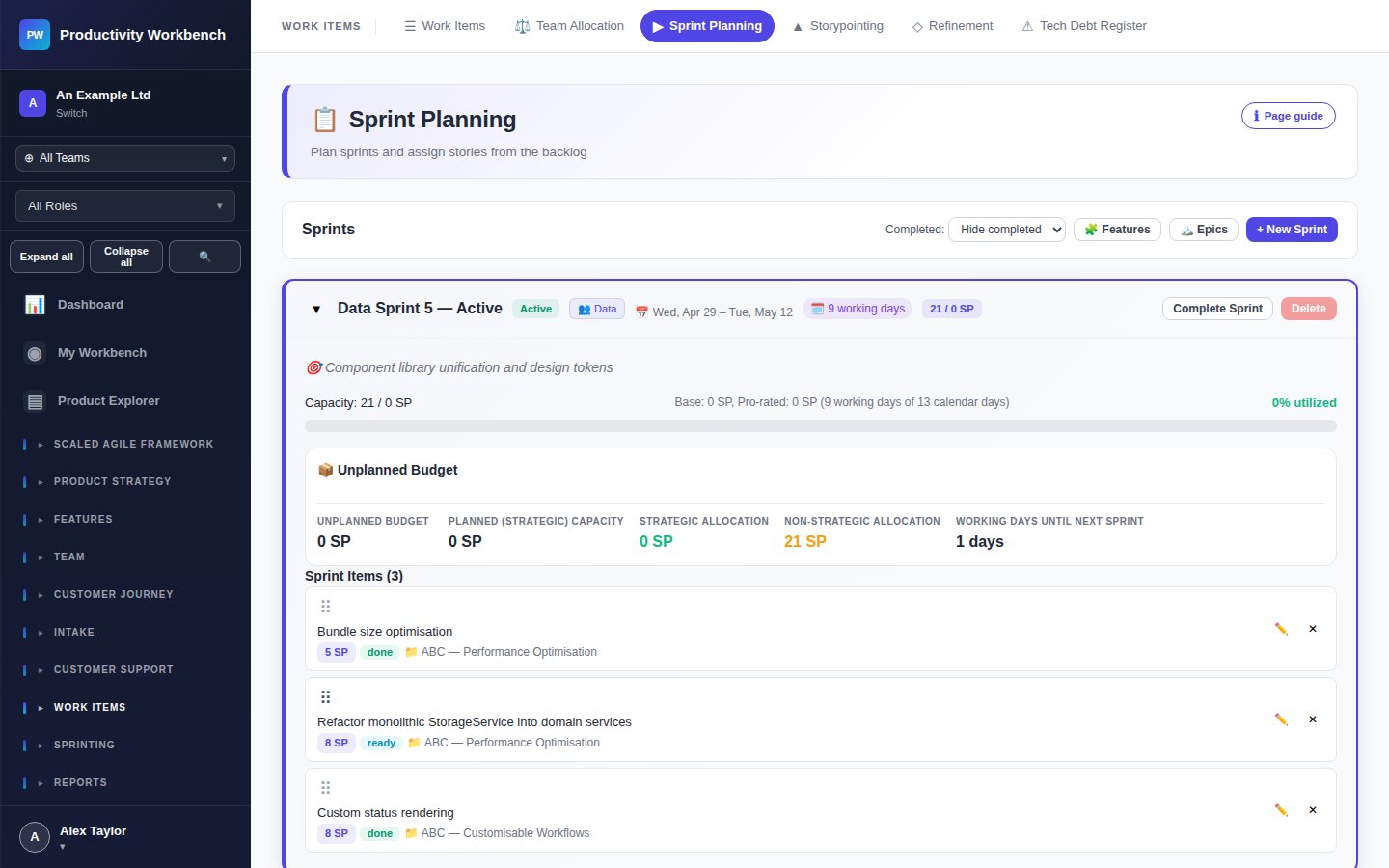
Create a Sprint & plan work
Go to Sprint Planning. Click New Sprint, set the start and end date, and give it a goal. The right-hand backlog shows your prioritised stories — drag them into the sprint. The capacity bar shows how loaded the sprint is against available team points.
Running the Sprint
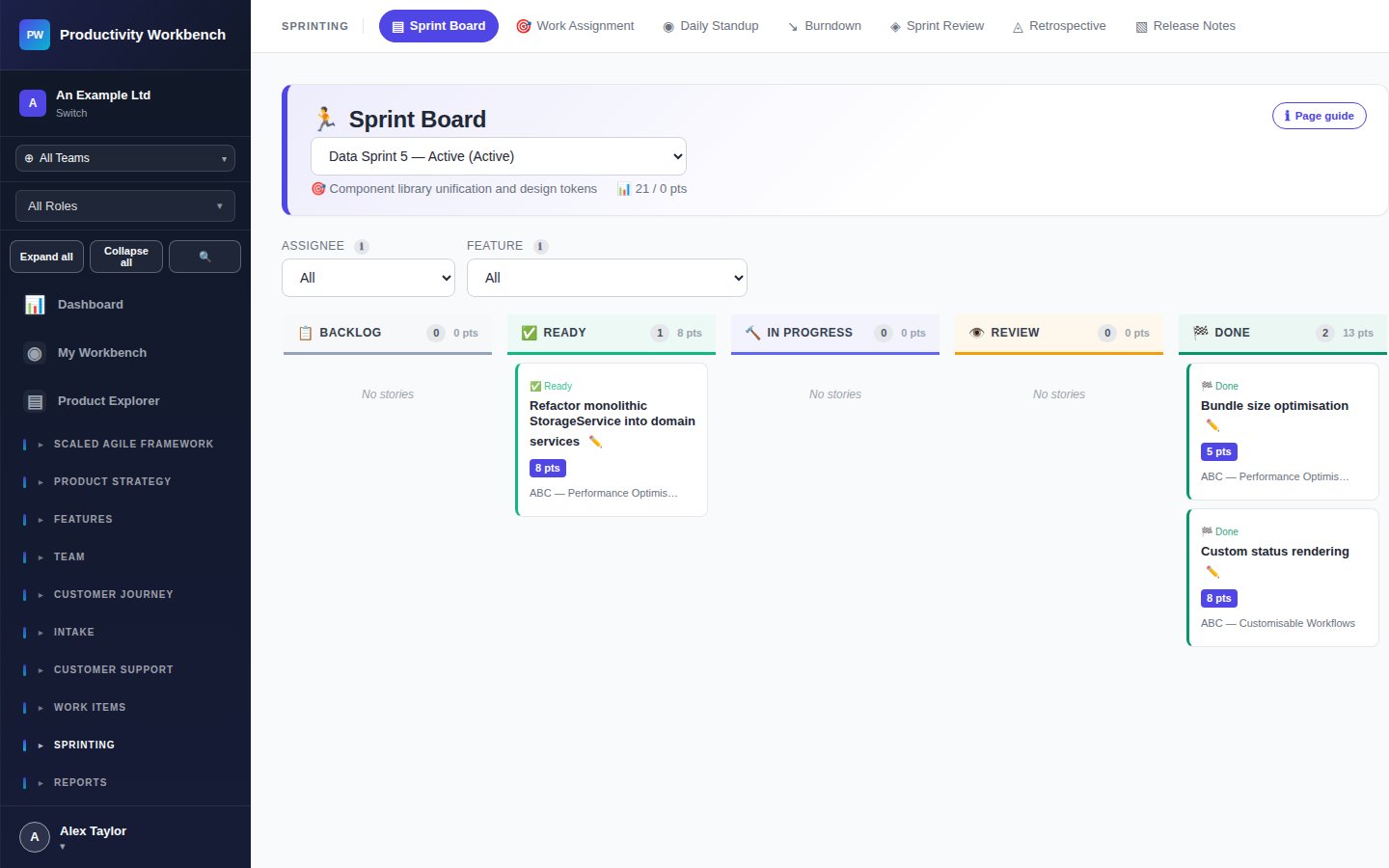
Track progress on the Sprint Board
Go to Sprint Board. Stories move across three columns: To Do → In Progress → Done. Team members can drag cards directly on the board. Blockers can be flagged with a red indicator.
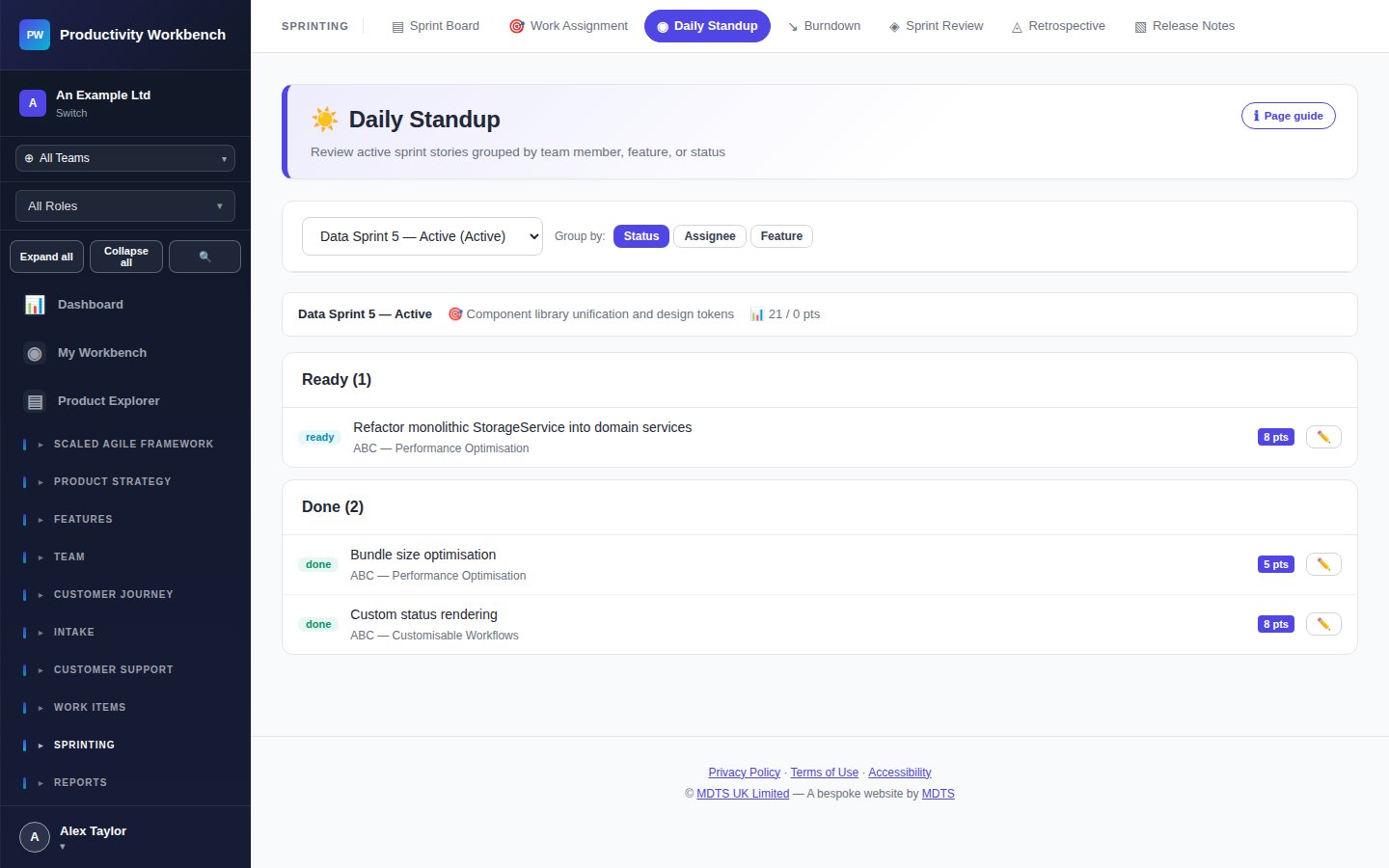
Run Daily Standup
Go to Daily Standup. The standup view shows each team member's assigned stories with Yesterday / Today / Blockers fields. Work through the team one by one. Standups are not saved as records — they are a real-time facilitation tool.
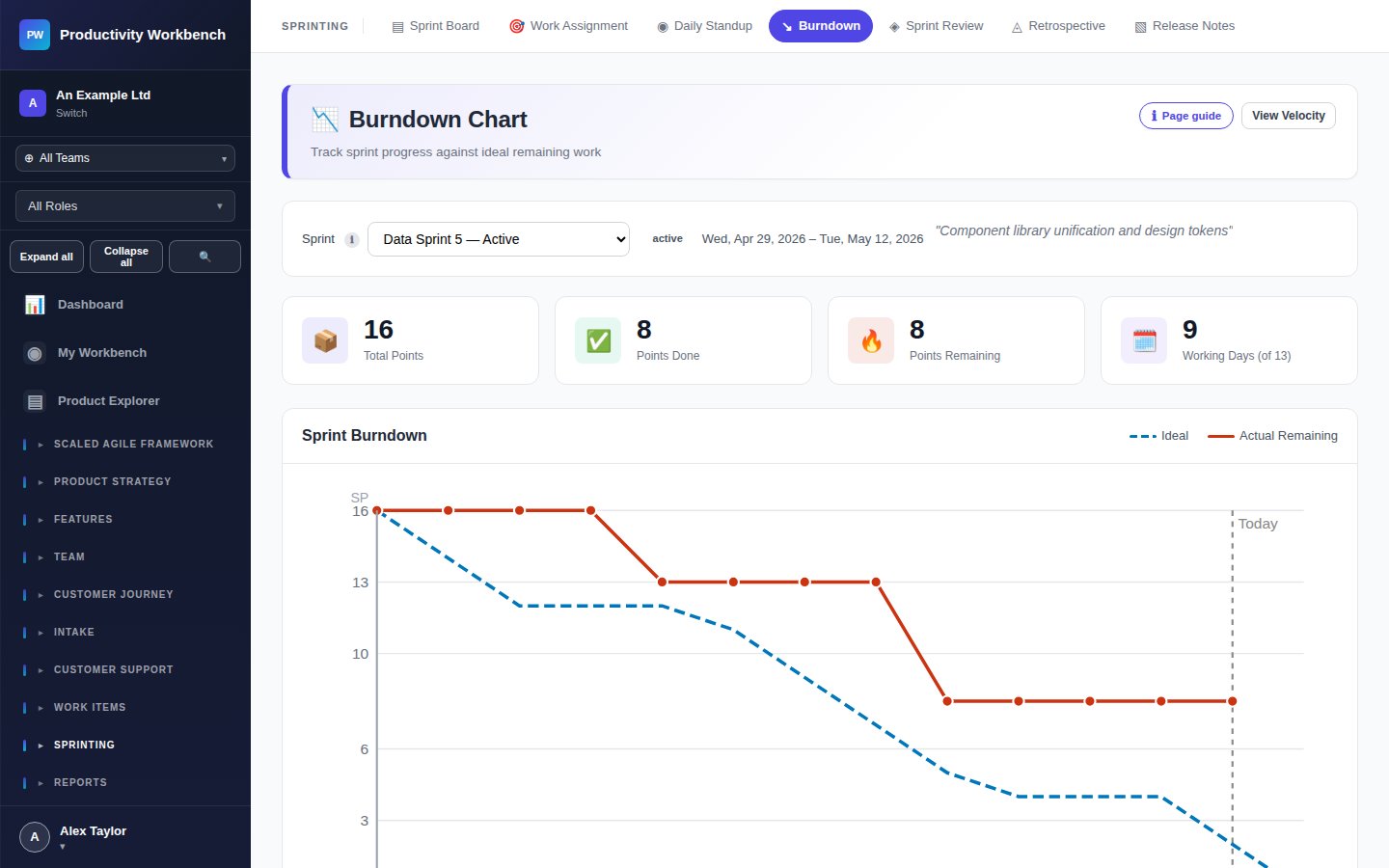
Monitor the Burndown
Go to Burndown. The burndown chart plots ideal remaining points vs. actual remaining points day by day. A line consistently above the ideal indicates the team is behind and you may need to renegotiate scope.
Closing the Sprint
Sprint Review
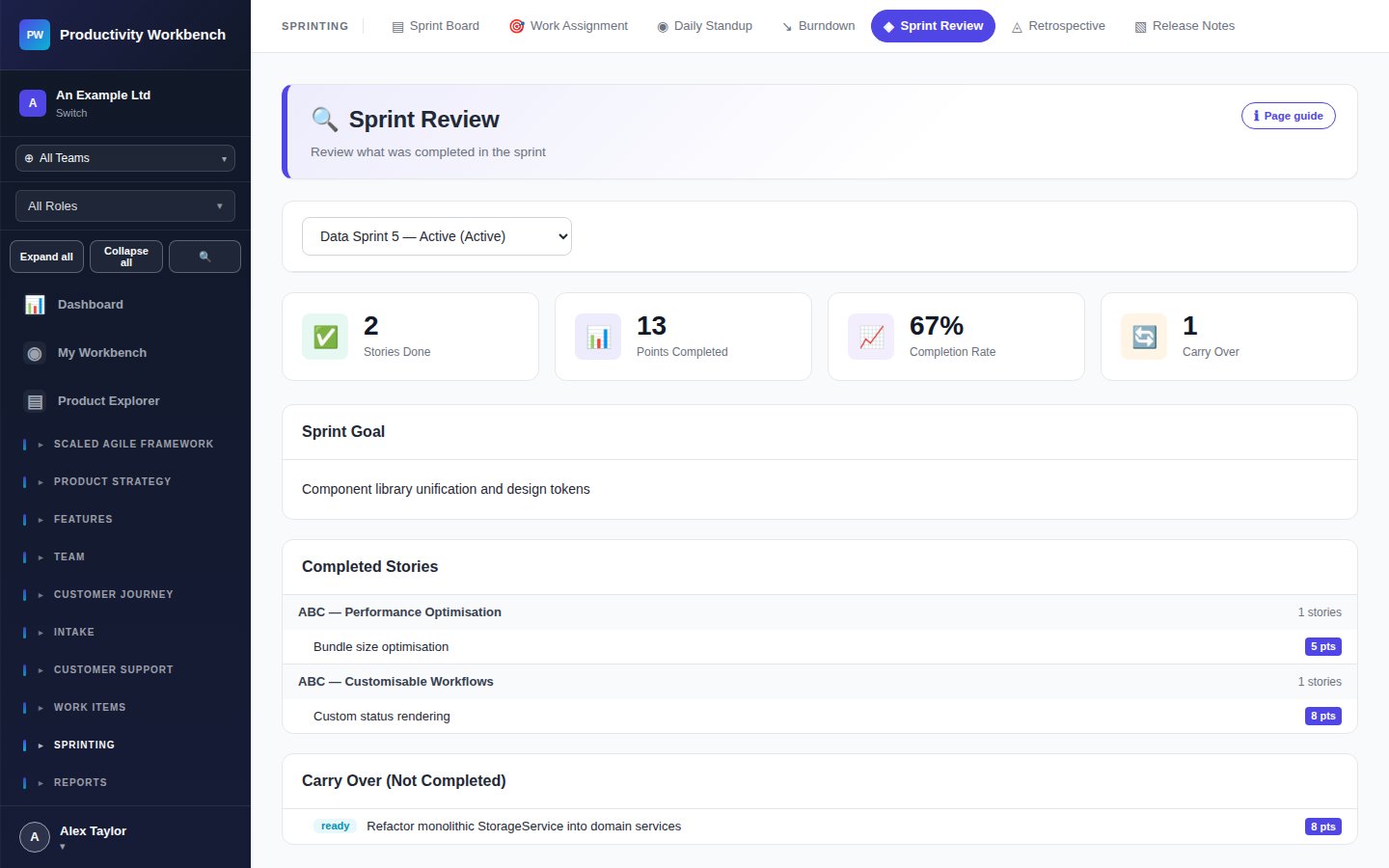
Go to Sprint Review. Record which stories were completed, which are carried over, and any stakeholder feedback. The review is the formal acceptance ceremony — only stories that meet the Definition of Done should be marked complete.
Retrospective
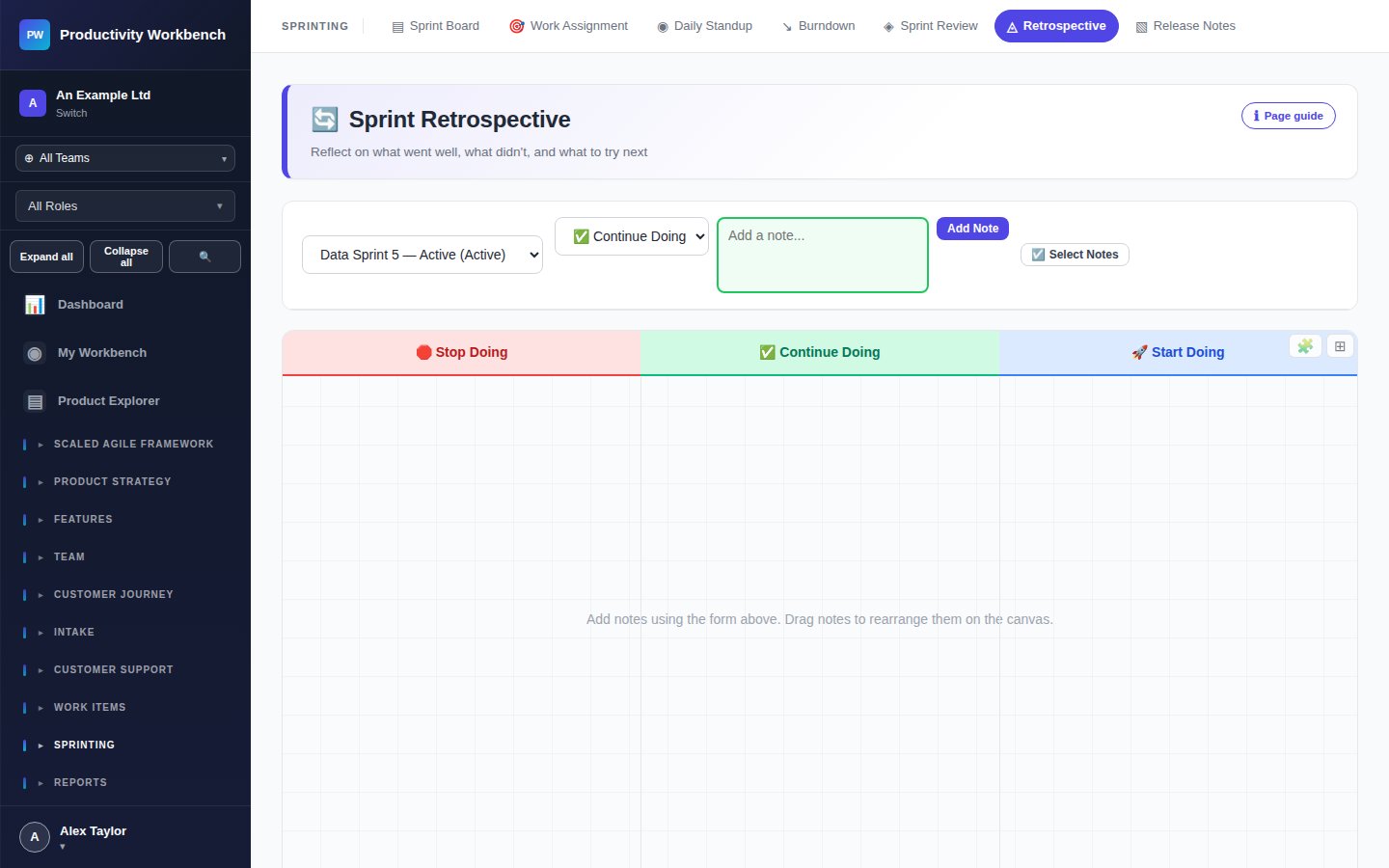
Go to Retrospective. Log what went well, what didn't, and improvement actions. Actions are tracked across sprints so you can see whether previous retrospective items were resolved.
Generate Release Notes
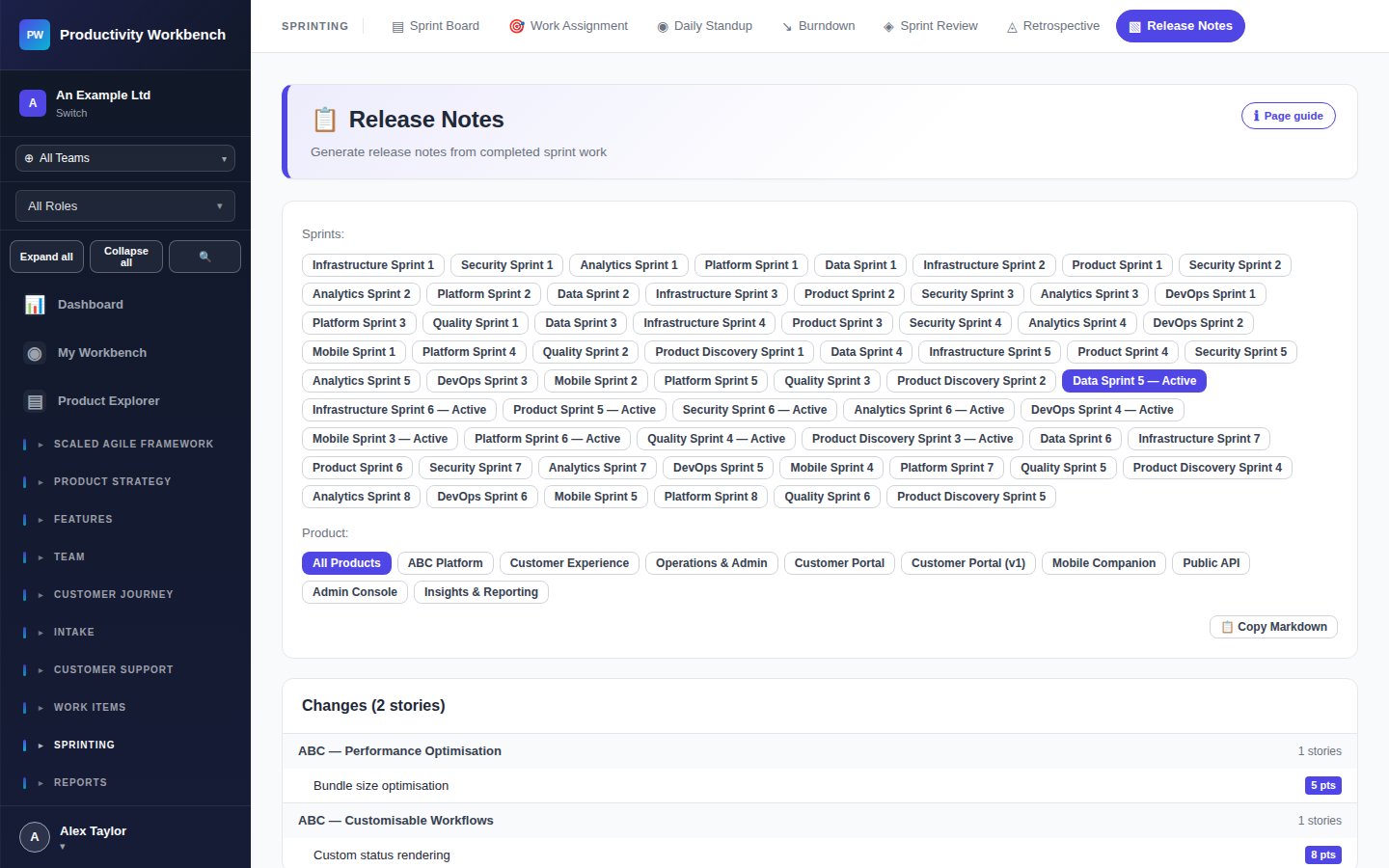
Go to Release Notes. Release notes are auto-populated from completed stories in the sprint. Review and edit them before publishing or copying to your stakeholder communications.
Archive the sprint & start the next
Return to Sprint Planning. Any incomplete stories can be dragged into the new sprint's backlog. Archive the completed sprint — it will remain visible in historical reports.