
Account & Workspace Setup
Get your team up and running in minutes. This guide covers creating an account, configuring your first workspace, and inviting your colleagues.
Create your account
Navigate to productivityworkbench.com and click Get Started. Enter your name, email address, and a secure password. You'll receive a verification email — click the link to activate your account.
Create your first workspace
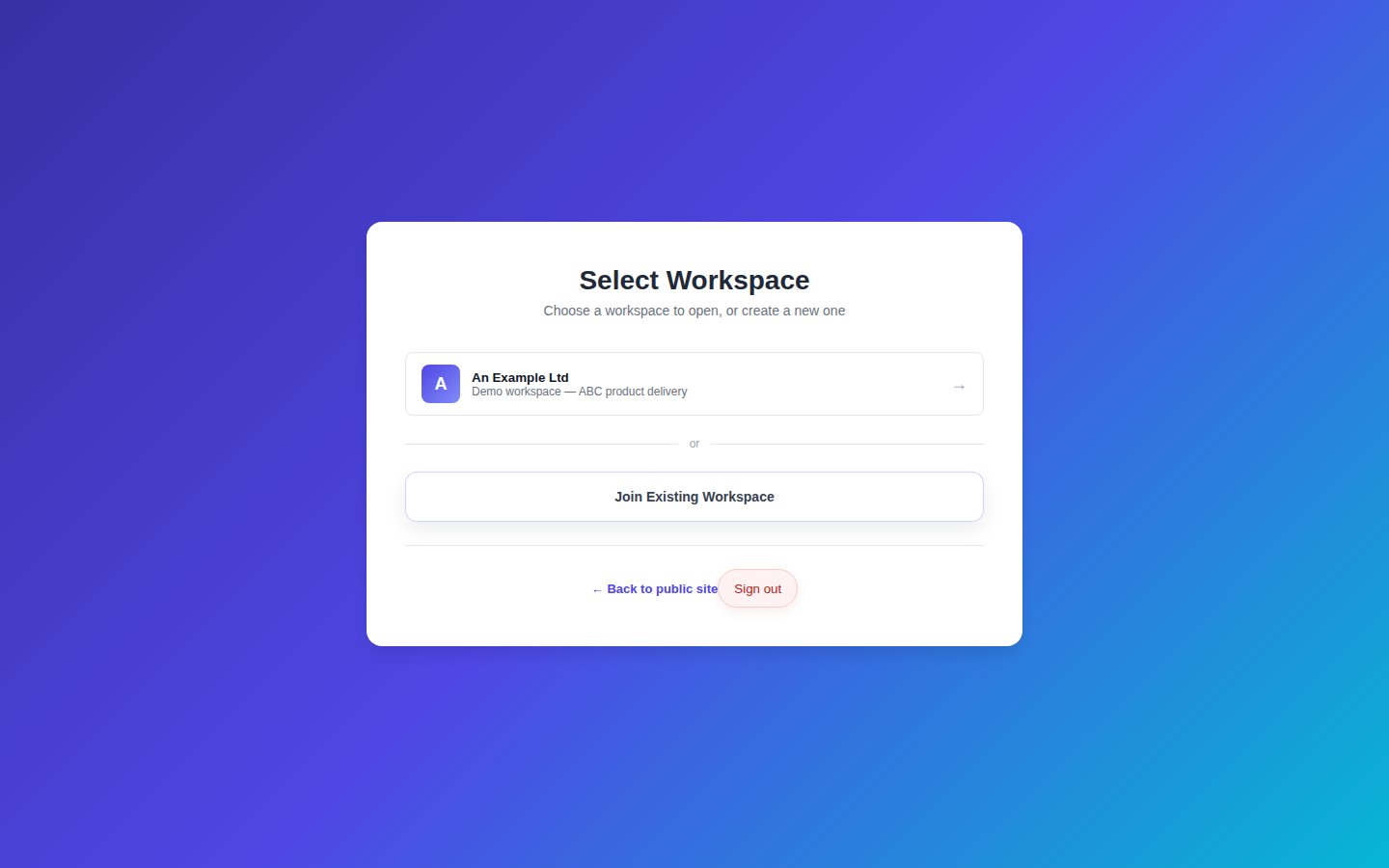
After email verification you are taken to the Workspaces screen. A workspace is an isolated environment for your team. Click Create Workspace and provide:
- Name — your product or team name
- Description — the scope or remit of that workspace
- Tier — Free, Business, or Enterprise
- Optional sample data — useful for evaluation and onboarding
Invite team members
Go to Admin → User Administration. Click Invite User and enter their email address. They will receive an invitation link. Newly invited users default to the Contributor role.
Configure roles & permissions
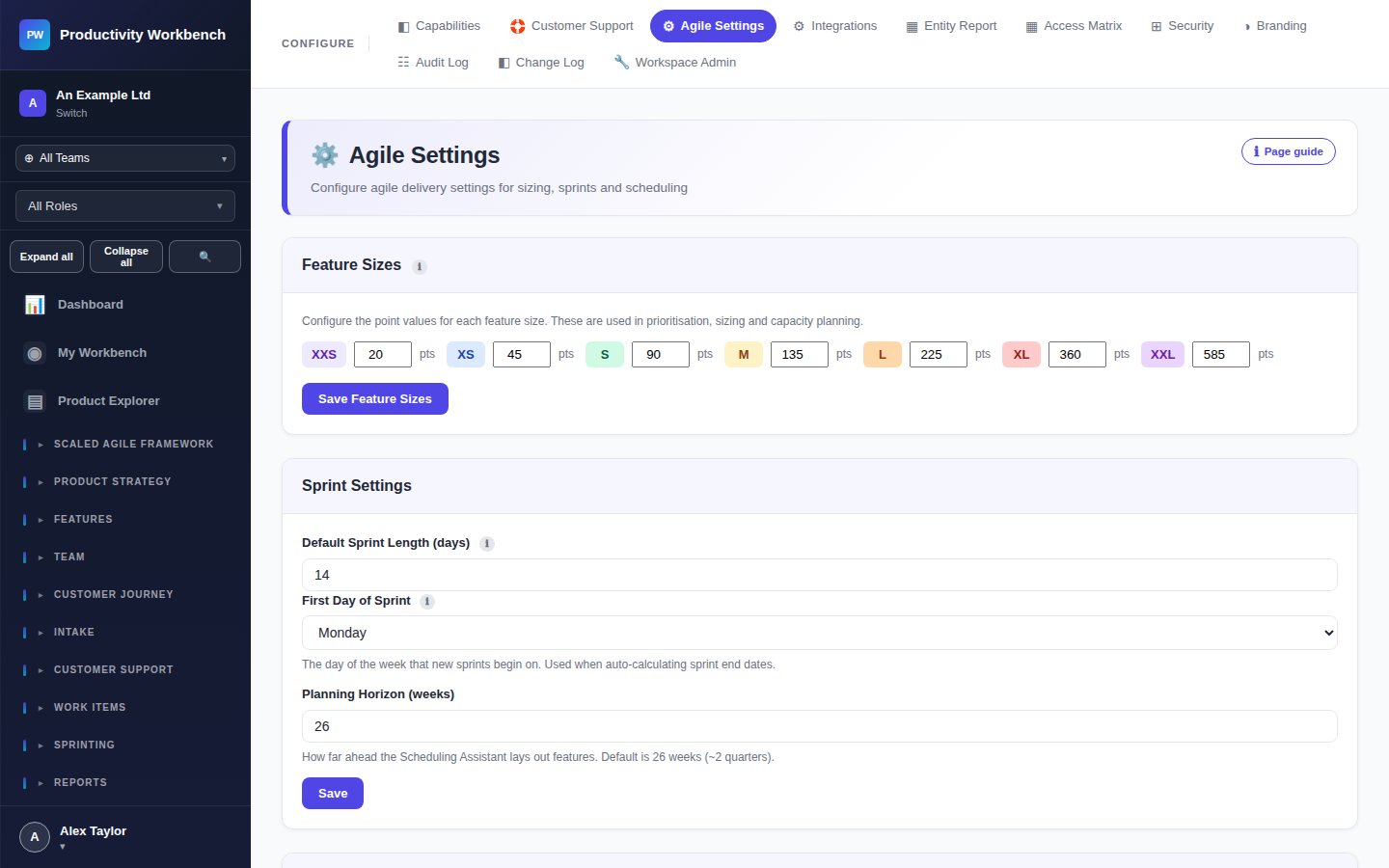
Navigate to Admin → Access Matrix. Each role (Admin, Product Owner, Contributor, Viewer) has a default set of page-level permissions. You can customise these to control exactly who can read and write each area of the app.
Customise branding
Go to Admin → Branding to set your workspace colours, navigation icons, and card styles. Changes apply instantly and are visible to all workspace members.