
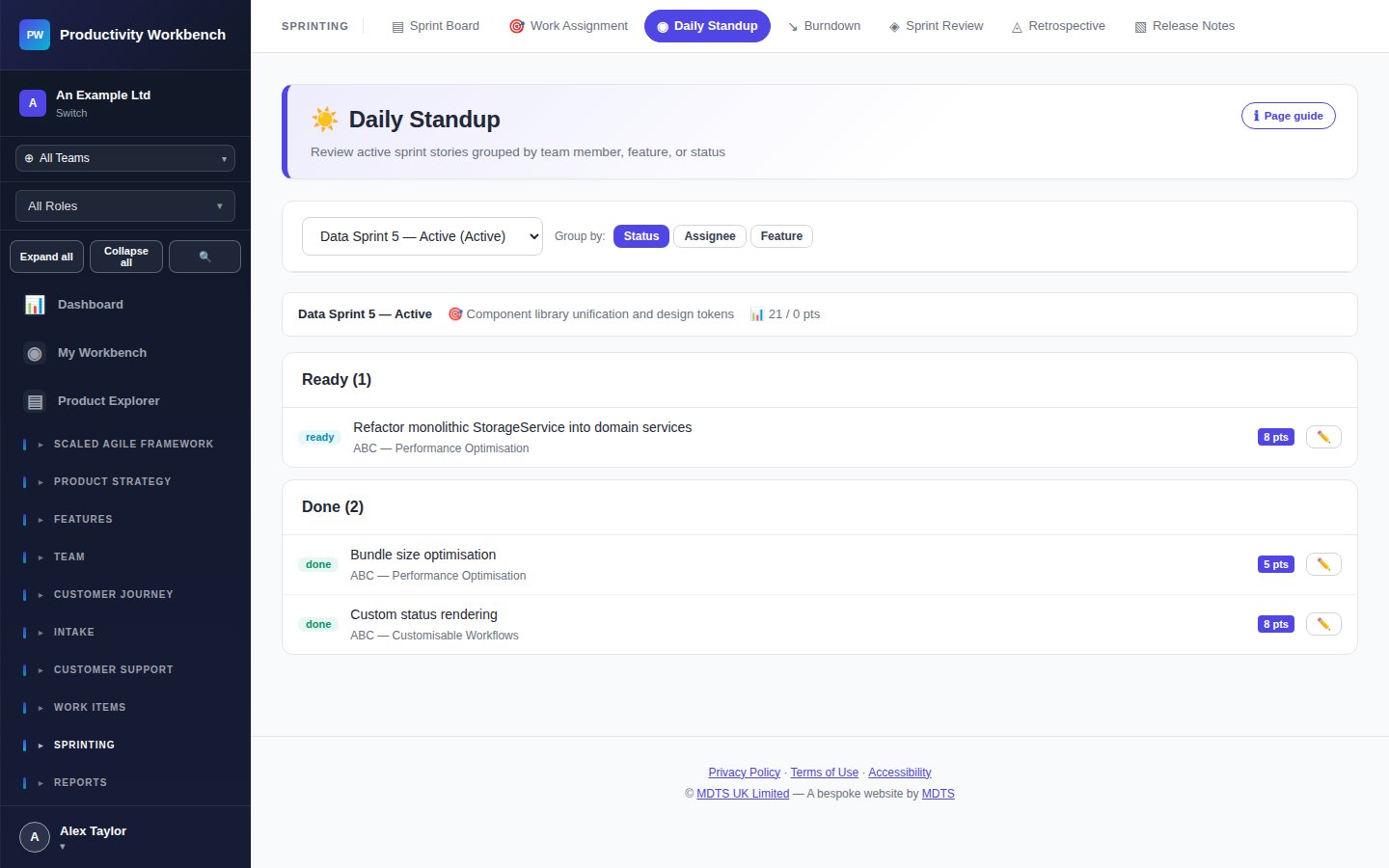
Daily Standup
A real-time facilitation view for the daily standup ceremony — shows each team member's stories with yesterday/today/blockers prompts.
How to use the Standup view
Open Daily Standup
Navigate to Sprint Board → Daily Standup. The view loads the active sprint automatically. Select the team if you have multiple teams.
Work through each team member
For each person, the view shows their assigned stories. Use the three prompts as discussion guides — these are facilitation aids, not recorded fields.
- Yesterday — what did you complete or progress?
- Today — what are you working on today?
- Blockers — is anything preventing progress?
Flag blockers
If a team member raises a blocker, click the 🚫 Flag as Blocked button on their story. This marks the story on the Sprint Board and surfaces it on the Dashboard. Assign a blocker owner before the standup ends.
What standup is not
The daily standup is a synchronisation meeting — not a status report to management. Keep it to 15 minutes. Move detailed discussions to after the standup ("parking lot"). The Standup view is a facilitation tool — nothing is saved from standup conversations.