
Release Notes
Generate professional release notes automatically from completed sprint stories, then publish them to stakeholders with one click.
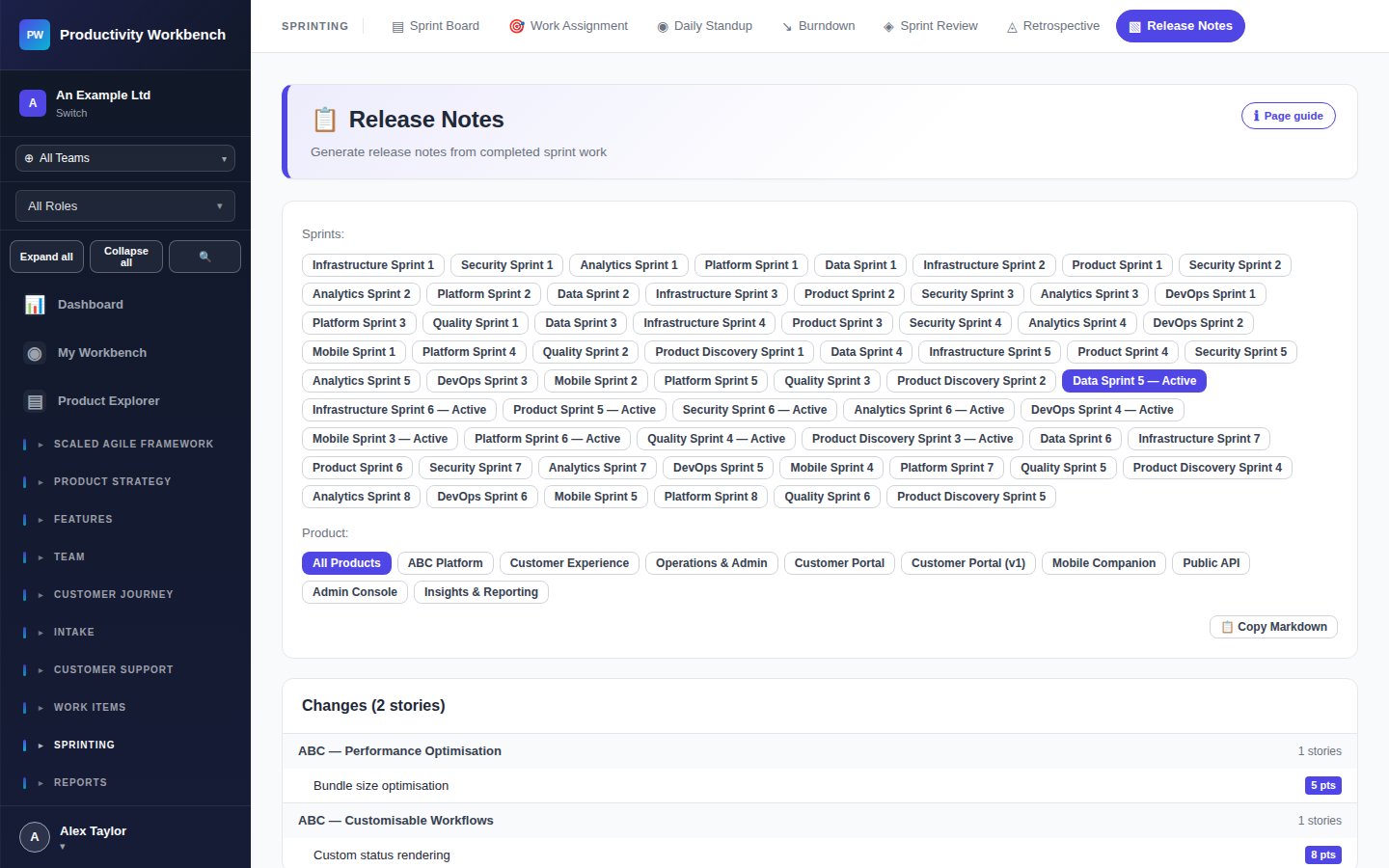
How release notes are generated
At the end of a sprint, Productivity Workbench auto-populates the release notes from all stories in the sprint that are marked Done and meet the Definition of Done. Stories are grouped by type (Feature, Bug Fix, Improvement) and ordered by priority.
Generating release notes
Complete the Sprint Review
Before generating release notes, complete the Sprint Review. Only stories formally accepted in the review (status = Done) are included in the notes.
Open Release Notes
Navigate to Sprint Review & Retro → Release Notes. Select the sprint. The draft notes are generated automatically from the completed stories.
Review and edit
Edit the auto-generated text to match your stakeholder audience. You can:
- Rewrite individual story entries in plain language
- Group related stories under a theme heading
- Remove internal or technical entries not relevant to stakeholders
- Add a summary paragraph at the top
Publish or export
Copy the formatted notes to your communications channel (email, Confluence, Slack). Use the Export button to download as plain text or markdown.
Tips for good release notes
- Write from the user's perspective — "You can now export reports as CSV" not "CSV export endpoint added"
- Separate New Features, Improvements, and Bug Fixes — stakeholders scan these differently
- Link to any relevant screenshots or documentation for major new features
- Keep the tone consistent — decide on formal or friendly and stick to it