
Retrospectives
The retrospective is your team's continuous improvement engine. Run it at the end of every sprint to inspect your process and commit to specific improvements.
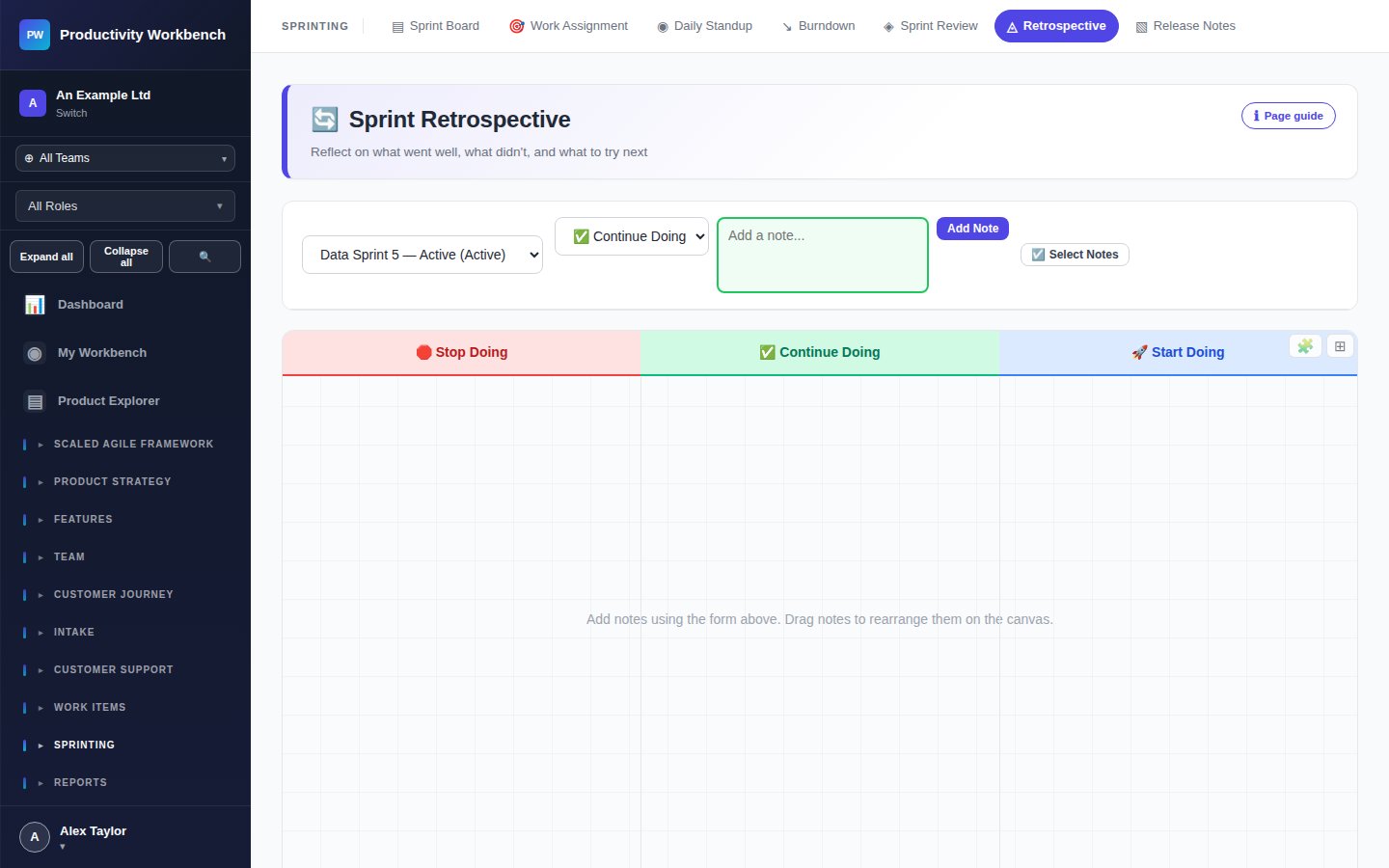
Running a Retrospective
Open the Retrospective
At the end of a sprint, navigate to Sprint Review & Retro → Retrospective. The page is pre-loaded with the just-completed sprint's context — team, velocity, and any previous outstanding actions.
What went well?
Each team member adds cards to the Went Well column. These capture positive practices worth reinforcing. The facilitator groups similar items and the team dot-votes to identify the most important.
What could improve?
Team members add cards to the To Improve column — things that slowed delivery, caused friction, or should be done differently. Focus on process, not people.
Agree on actions
For each top improvement item, the team agrees a concrete, assignable action. Add it to the Actions column with an owner and due date. Keep it to 1—3 actions per sprint — focus beats volume.
Close the retrospective
Mark the session complete. Actions are tracked across sprints — they appear at the top of the next retrospective until resolved. The closed session is saved in the sprint record for future review.
Review formats supported
Productivity Workbench supports the most common retrospective formats:
- Start / Stop / Continue — what should we start doing, stop doing, keep doing?
- Went Well / To Improve / Actions — the standard format, suitable for most teams
- 4Ls — Liked, Learned, Lacked, Longed For
Tracking actions across sprints
Outstanding retro actions are surfaced automatically in the next retrospective. This creates accountability and prevents the same issues recurring sprint after sprint. Go to Reports → Productivity to see your action completion rate over time.