
Sprint Planning
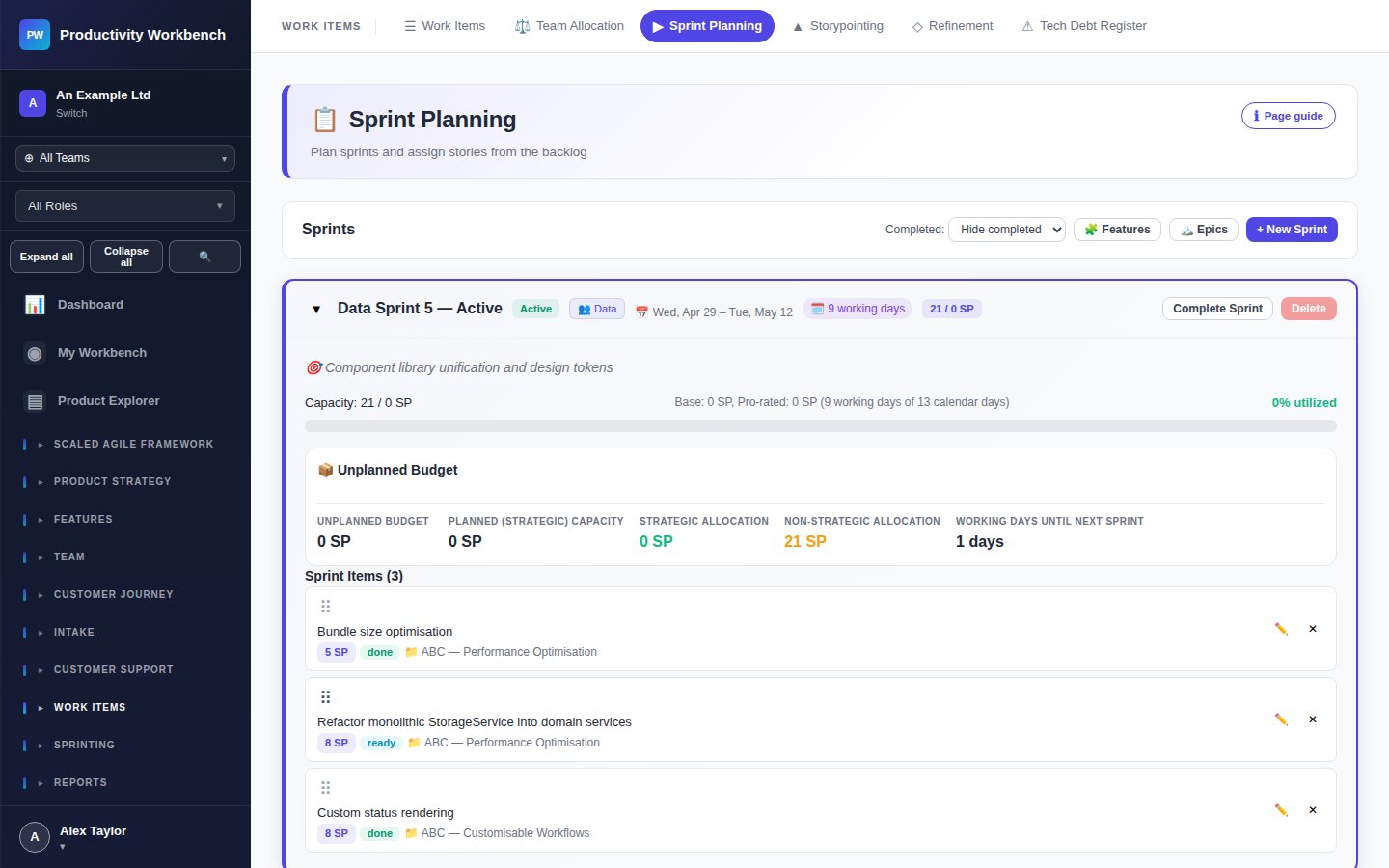
Build your sprint commitment by dragging Ready Stories into the sprint, tracking team capacity, and agreeing on the sprint goal before starting delivery.
Before you start
- Ensure team members are configured with their availability (capacity) for the sprint — set in the Teams page.
- Stories should be Refined and have point estimates before planning. Unpointed Stories cannot contribute to capacity calculations.
- Create the sprint in the Sprints section if it doesn't already exist, with a start date, end date, and goal.
Sprint Planning layout
The page is split into two panels:
- Left: Product Backlog — all Ready, unassigned Stories, ordered by WSJF score (highest first by default). Filter by Feature or Epic to focus on a theme.
- Right: Sprint Backlog — Stories committed to the current sprint, with a live capacity bar at the top.
Capacity bar
The capacity bar shows: team total capacity (in points, based on availability — velocity), points committed so far, and remaining capacity. It turns amber at 80% and red at 100%. You can still add Stories beyond capacity — the bar is advisory, not a hard limit.
Adding Stories to the sprint
Drag Stories from the backlog panel into the sprint panel, or click the + button on any Story card. Each addition updates the capacity bar in real time. To remove a Story, drag it back to the backlog or click the — on the sprint card.
Sprint goal
Enter the sprint goal in the text field at the top of the sprint panel. The goal should be a short, outcome-oriented statement that the team commits to (e.g. "Complete checkout flow and integrate payment gateway"). The goal is displayed prominently on the Sprint Board throughout the sprint.
Team capacity breakdown Business+
Expand the capacity panel to see individual availability per team member. Adjust availability for holidays or leave by entering a reduced hours figure. The total capacity recalculates automatically.
Finalising the sprint
When the team is satisfied with the plan, click Start Sprint. This locks the sprint start date, changes Stories to In Progress (if they were Ready), and activates the Sprint Board. A confirmation dialog summarises the commitment before locking.
Tips
- Don't fill to 100% — leave 10—15% slack for unexpected work and bugs.
- Prioritise by WSJF, but discuss sequencing within the sprint with the team — technical dependencies may change the order.
- Agree on the sprint goal before pulling stories — the goal shapes what you select, not the other way around.
- If a Story is too large to fit in the sprint alongside the rest of the commitment, split it rather than overloading.