
Organisation Hub
Organisation Portal
14 pages · scroll straight through
Organisation Portal Overview
The Organisation Portal is the central administration layer above individual workspaces. It gives Organisation Admins a unified view of all workspaces, organisation-wide settings, billing, security policy, and cross-workspace reporting.
What the Organisation Portal covers
| Section | Purpose |
|---|---|
| Hub | Organisation overview, workspace listing, and quick actions |
| Structure | Departments, divisions, and workspace grouping hierarchy |
| Billing & Account | Subscription management, invoice history, seat allocation |
| Security | SSO (SAML/OIDC), SCIM 2.0, MFA, session limits, step-up auth, IP allowlisting, audit retention |
| Audit Log | Organisation-wide security events with CSV, JSON, and SIEM export |
| Branding | Organisation logo and colour scheme applied across all workspaces |
| Workspace Templates | Pre-configured workspace setups that new workspaces inherit |
| Reports | Cross-workspace aggregate reporting and delivery health |
| Support | Raise and track support requests at organisation level |
| Notifications | Organisation-wide notification settings and distribution lists |
Accessing the Organisation Portal
Select Organisation from the workspace switcher in the top-left. If your account has the Organisation Admin role, you will land on the Organisation Hub. Contact your organisation's super-admin if you need access.
Organisation Hub
The Hub is the landing page for Organisation Admins — an at-a-glance view of workspace health, seat usage, recent admin activity, and quick links to frequently used admin tasks.
Hub sections
Workspace health indicators
Each workspace card on the Hub shows a health indicator (Green / Amber / Red) based on: last activity date, completion rate, security policy compliance, and AI governance status (for Enterprise workspaces). Click a workspace card to see the detail breakdown.
Organisation Structure
Define your organisation's hierarchy of departments, divisions, and product areas — and map workspaces to them. Enables structure-aware reporting and policy inheritance.
Building your structure
Click Add Division to create top-level organisational units (e.g. Technology, Operations, Finance). Within each division, add departments. Departments are the lowest structural level — workspaces are assigned to departments.
Assigning workspaces
Drag workspaces onto department cards, or click a workspace's overflow menu and choose Assign to Department. A workspace can belong to only one department. Unassigned workspaces appear in the "Unassigned" bucket.
Why structure matters
- Reporting: Organisation Reports can aggregate data by department, division, or the full organisation.
- Policy inheritance: Security policies and workspace templates can be scoped to a division or department and inherited by all workspaces within it.
- Billing: Cost allocation reports can split usage by department for internal chargeback.
Department owners
Assign a Department Owner to each department. Department owners receive delivery health notifications for their workspaces and can see aggregate reports for their department without full Organisation Admin access.
Billing & Account
Where your Organisation's plan is bought and managed: the subscription, the seats and who is using them, the invoices, and the billing details those invoices use.
Subscribing
A new Organisation is awaiting its subscription: until a plan is paid for, this is the only page that answers. Choose Business or Enterprise, monthly or a year in advance, and the number of seats, then pay by card. The Organisation opens as soon as the payment is confirmed, and its other pages open with it. There is no trial on either plan: the Free plan, which needs no Organisation, is how you try the product. The Pricing page has the current prices.
Seats and people
Price changes
If a published price is going to rise, the Organisation's owner is emailed at least 30 days before. The new price applies from your next billing period after that date, never part-way through a period you have paid for, and the page shows the change beside the plan it concerns.
Cancelling, and coming back
Cancel from this page at any time. The subscription runs to the end of the period you have paid for; you can restart the renewal before then. When it ends the Organisation is archived: nothing is deleted, its workspaces and studios return to the Free limits, and anything over a limit is read-only until it is brought within it. Subscribing again reinstates the same Organisation as it was.
While an Organisation is archived nothing can be added to it, but anything it holds can be taken away. This page lists the stored credentials, SCIM, and the linked workspaces and studios, with a removal for each. Administrators and invitations are removed on User Management, and the Audit Log can still be read and exported.
Negotiated contracts
A larger estate can agree its own rate with us on Enterprise, with a minimum term, billed by invoice. The contract panel is then read-only, because the seats, the rate and the term are the agreement reached with our team and are applied on our side.
Purchase order number
Set your PO under Invoice details. It is printed on every invoice raised for the subscription, and saving a new one applies it to future invoices immediately. Most finance teams will not settle an invoice that does not quote a valid PO, so keep it current when a new PO is issued.
Invoices
Every invoice raised for the subscription is listed with its issue date, due date, PO reference, status and total. Invoices carry our company name, registered address and VAT registration number alongside your organisation's billing details and VAT number.
Billing details
Editing these changes future invoices only. Invoices already issued keep the details they were raised with, because an issued invoice is a financial record. If someone else changes the details while you are editing them, your save is refused and the form shows what is stored, so nothing is overwritten unseen.
Organisation Security
Configure enterprise identity and access for all member workspaces: SAML/OIDC SSO, SCIM 2.0 provisioning, TOTP MFA, session limits, step-up authentication, and audit retention.
Single Sign-On (SSO)
Enable Enforce SSO and choose SAML 2.0 or OpenID Connect. Enter your IdP metadata URL (SAML) or issuer URL + client ID (OIDC). Users sign in from the login page with their organisation ID and the Sign in with SSO button.
Optional Auto-Provision adds federated users as Developer members on all org-linked workspaces on first login.
Only the organisation’s owner can configure the provider: it decides who can sign in as this organisation’s members, including administrators.
Public documentation: Enterprise Identity & Access · Security architecture
SCIM 2.0 provisioning
Click Enable SCIM to generate a bearer token (shown once). Configure your IdP provisioner with:
- Base URL:
/scim/v2 - Authentication: Bearer token
- Groups: Developer, Admin, Stakeholder, OrgAdmin (maps to workspace personas and org admin)
Rotate the token periodically. De-provisioning disables the Cognito account and removes memberships.
The OrgAdmin group makes organisation administrators only while the token in use was issued by the organisation’s owner. Administrators can release studios, so who becomes one is the owner’s decision: a token another administrator issued keeps users and personas in step but makes no administrator, and the refused attempt is on the security trail. The SCIM card says which kind of token is in use.
Administrators and their authority over studios
An organisation administrator can write and activate guardrail policies, read the exceptions register, place a legal hold on a studio’s work, and release a studio from the organisation. Because of that, who becomes an administrator — and what can make one — is the organisation owner’s decision by every route.
| Action | Who |
|---|---|
| Add an administrator, or send an invitation to become one | The owner only. An invitation is accepted only if the organisation’s current owner sent it, and only by the account it was sent to |
| Remove an administrator | The owner, or the administrator themselves |
| Configure the single sign-on provider | The owner only |
| Issue, rotate or disable the SCIM token | The owner only. Any administrator can see whether SCIM is on |
A one-person organisation is unaffected: its owner is its only administrator. Who may do what across guardrails, exceptions and passports is set out in Who May Do What.
Multi-Factor Authentication
Enable Require MFA to mandate authenticator-app TOTP for all members. Users enrol at Account → MFA (/account/mfa). The API returns MFA_REQUIRED when policy is active but the session lacks an MFA claim.
Step-up authentication & session limits
auth_time).IP allowlisting
Add CIDR ranges when Enforce IP allowlist is enabled. Workspace and organisation API routes evaluate the client source IP on every request; violations return 403 IP_RESTRICTED.
Workspace override permissions
Control whether workspace admins may add supplementary IP rules, configure local SSO, or downgrade MFA below the organisation baseline. Keep MFA downgrade disabled unless security governance explicitly approves it.
Platform abuse protection (MDTS-operated)
Independent of organisation policy, the platform enforces:
- Per-IP rate limits on sign-in, registration, password reset, and workspace join
- 256 KB request body cap on mutating API routes
- JSON Schema validation on authentication request bodies
- Maximum 10 workspaces per user account (creation cap)
- API Gateway stage throttling for platform-wide back-pressure
Managed AWS WAF on CloudFront is planned when a contract or abuse metrics justify its standing cost (a monthly fee per Web ACL and per managed rule group, charged even with no traffic). See Security architecture and System status.
Organisation Audit Log
Search, filter, and export security events across your organisation — login activity, SSO, SCIM provisioning, policy changes, and SIEM exports.
What is recorded
Events are written to an append-only audit table (separate from workspace delivery audit). Typical entity types include security, orgSecurity, and orgSso. Examples:
- Login success and failure, SSO login, logout
- MFA challenge and enrolment
- SCIM user provision and de-provision
- Organisation security policy changes
- SIEM export actions
Exporting
Retention
Retention follows the Audit log retention (days) setting on Organisation Security (default 365). Workspace-level overrides may apply to workspace-scoped audit only.
Procurement and trust materials: Enterprise trust centre · Vendor pack
Guardrail Policies
A guardrail policy is the floor your organisation puts under every linked AI Product Studio: the Definition of Ready and Done items each work package must carry, the rules a release must meet, and whether two different people must decide. Studios can tighten it; they cannot loosen it.
Draft, activate, version
Open Organisation → Guardrail Policies. A policy is a draft you can edit. Activate freezes it as the next numbered version, and from then on every new work package in every linked studio is created under that version. One policy is active at a time.
Editing, activating and retiring ask you to sign in again, and every change is in the organisation audit log, item by item.
Write your first policy, step by step
- Create your reviewer roles first. Under Organisation reviewer roles on the Guardrail Policies page, add the roles your items will name — for example Security lead and Peer reviewer. An item’s human side names one of these, or any human in the loop.
- Start a draft and add a few items. Five to ten is a sensible first policy. For each: whether it belongs to the Definition of Ready or the Definition of Done, its agent reviewer, its human reviewer role, and the controls it is evidence for.
- Decide how much a studio may add.Tighten allowed lets a studio add a reviewer or a control to the item; Locked lets it add nothing. No studio can remove or weaken an item either way.
- Set the release rules you need, and leave the rest off.
- Set the exception rules: whether exceptions are allowed, the most days an item may stay under exception in all, and which roles may grant one.
- Leave separation of duties and four-eyes on change off unless you have the people for them. Both can be turned on later.
- Activate. You are asked to sign in again. The draft is frozen as version 1.
- Check Coverage. Each linked studio must say which of its own roles answers for each of yours, on its Human Roles page. Until it does, that role is held by nobody there and its items cannot be approved. Coverage shows which studios have not.
How the items then behave in a studio — the gates, the evidence and the passport — is in the Studio guide, starting at Start Here: Guardrails to Passport.
Items
Each item is a Definition of Ready or Definition of Done check, always required, with an agent reviewer, a human reviewer, or both, and the controls it is evidence for. In a linked studio the organisation’s items appear first on every new work package, marked with a lock and the version they come from.
Organisation reviewer roles
An item’s human side names one of your organisation’s reviewer roles, or any human in the loop. Each studio maps your roles to its own on its Human Roles page. A role a studio has not mapped is held by nobody there, so its items cannot be approved until the studio maps it.
Must be a named role. A studio may answer one of your roles with “any human in the loop”, which lets every member there approve. Switch this on for a role to forbid that. It is off by default, it is the organisation owner’s to change, and it applies at once — a studio already answering the role that way cannot approve that role’s items or releases until it names a role.
Release rules
Separation of duties
By default a policy leaves this to each studio. It can instead require that two different people decide the two sides of a gate, or the two sides of each item as well. A policy can require separation; it can never switch off a studio’s own.
Four-eyes on changes to the policy itself is a separate option, off by default: with it on, a person who edited the policy since it was last activated cannot be the one to activate it. A lone owner who turns it on can only leave it by retiring the policy — the page says so next to the option.
Exceptions
A policy says whether a studio may take an exception to one of its items, how long an item may stay under exception, and which of your roles may grant one. An exception to an organisation item always has an expiry, and once it runs out the item is unmet again. Every exception appears in the Exceptions Register.
Coverage
The Coverage table shows which linked studios apply which version, which of your roles each has not mapped, which it answers with any human in the loop, and any studio whose link is no longer sound. Who holds your roles here shows, for each studio, the studio role each of your roles is mapped to, how many people hold it, and whether the studio’s owner is one of them. You do not choose those people — each studio maps its own — but you can see who it chose.
Studios and the organisation link
Studios with no organisation
Nothing here applies to them. A studio that belongs to no organisation keeps its own checklists, its evidence ledger, its passports and its exceptions, and nothing in it needs two people.
Exceptions Register
The Exceptions Register shows, in one place, where your organisation’s controls were set aside: every waived checklist item and every override of the reviewer agents on a gate in your studios, with who granted it, under which authority, why, and when it runs out.
What it lists
Open Organisation → Exceptions Register. Each row is one exception on one work package’s gate, in one of three states:
An exception that expired and was since renewed or decided is history, not a problem; the register counts those separately, so the Expired count is what still needs someone.
What each row tells you
Reading a large organisation
The register is read from each studio’s gates a part at a time, so it cannot drift from them. The page keeps reading until it has every studio and says how far it has got; Read the rest of the register carries on when it stops.
A studio that has left the organisation, or whose owner is not a member of it, is listed but not read: its gates are not the organisation’s to see.
Acting on it
The register is read-only. An exception is renewed, or its item met, in the studio that owns the work package. Whether exceptions are allowed at all, how long an item may stay under exception in all, and who may grant one are set on the guardrail policy. Reading the register needs no Enterprise contract.
Sampling and Holds
Three things an organisation needs once its studios deliver with agents: a second look at a share of completed work, a way to hold records for a legal matter, and a stated retention period for evidence.
Sample reviews
On Organisation → Guardrails, a policy can name a share of completed work packages and an organisation reviewer role. When a work package born under that policy version completes, the server decides whether it is one of the sampled ones. A member of the named role — as the package’s studio maps it to one of its own named reviewer roles — then records what they found: Confirmed, or a Concern with a note.
Legal holds
A legal hold on a work package or a release stops its records being deleted: the artefact itself, its studio, the pages of a held work package, the DPIA a held release names, the intent a held work package belongs to and the repository connection its commits came from. Each of those is refused while the hold is in force, naming the hold. It stops nothing else — work, approval, release and deployment go on as usual.
Evidence retention
The organisation’s owner can declare the minimum number of days the organisation keeps evidence for. It can never be shorter than the organisation’s audit retention. Declaring a period, or lengthening one, needs the Enterprise contract; shortening or withdrawing one does not.
Reading a large organisation
The lists are read from each studio a part at a time, so they cannot drift from the records. A studio that has left the organisation, or whose owner is not a member of it, is listed but not read. Reading this page, and placing or lifting a hold, need no Enterprise contract.
Organisation Branding
Set organisation-level branding that cascades to all workspaces — logo, primary colour, and appearance theme — ensuring consistent brand presentation across your entire organisation.
Logo
Upload your organisation logo (PNG or SVG, recommended 200×60px). The logo appears in the sidebar header of all workspaces. Individual workspaces can optionally display their own workspace name beneath the organisation logo.
Colour scheme
Set a primary colour that is applied to buttons, active navigation items, and links across all workspaces. This overrides any workspace-level colour selection. Use the colour picker or enter a hex value.
Theme preset
Choose an appearance preset (Professional, Minimalistic, Ocean, etc.) to apply as the default theme for all workspaces. Workspace administrators can still allow members to override their personal theme, unless you enable Lock Theme.
Lock Theme
Enable Lock Theme to prevent individual workspaces or members from changing the theme. This is useful for organisations that want strict brand consistency across all product delivery teams.
Email templates
Upload a logo and set a primary colour for Workbench notification emails sent from your organisation. Emails use your branding rather than the generic Productivity Workbench theme.
Workspace Templates
Create reusable workspace configurations that new workspaces inherit on creation — pre-populated with your standard hierarchy, Definition of Done checklists, sprint settings, team roles, and working conventions.
What a template contains
Creating a template
Click New Template. Give it a name and description. Configure each section. Save. You can create multiple templates for different team types (e.g. "Feature Team", "Platform Team", "Discovery Workstream").
Applying templates
When a new workspace is created, the workspace creator selects a template from the organisation's template library. Templates can also be retroactively applied to existing workspaces (Diff view shows what would change before applying).
Organisation Reports
Cross-workspace aggregate reporting for Organisation Admins — delivery health, team productivity, AI effectiveness, and feature completion trends across all workspaces in the organisation.
Available reports
Filtering
Filter all reports by department, division, workspace, date range, or team member role. Reports remember your last filter selection.
Scheduled distribution
Configure reports to be emailed as PDF to a distribution list on a weekly or monthly schedule. Useful for Steering Committee packs and quarterly planning reviews.
Support
Raise and track support requests for your organisation — billing queries, technical issues, access problems, and feature requests — all in one place.
Raising a support ticket
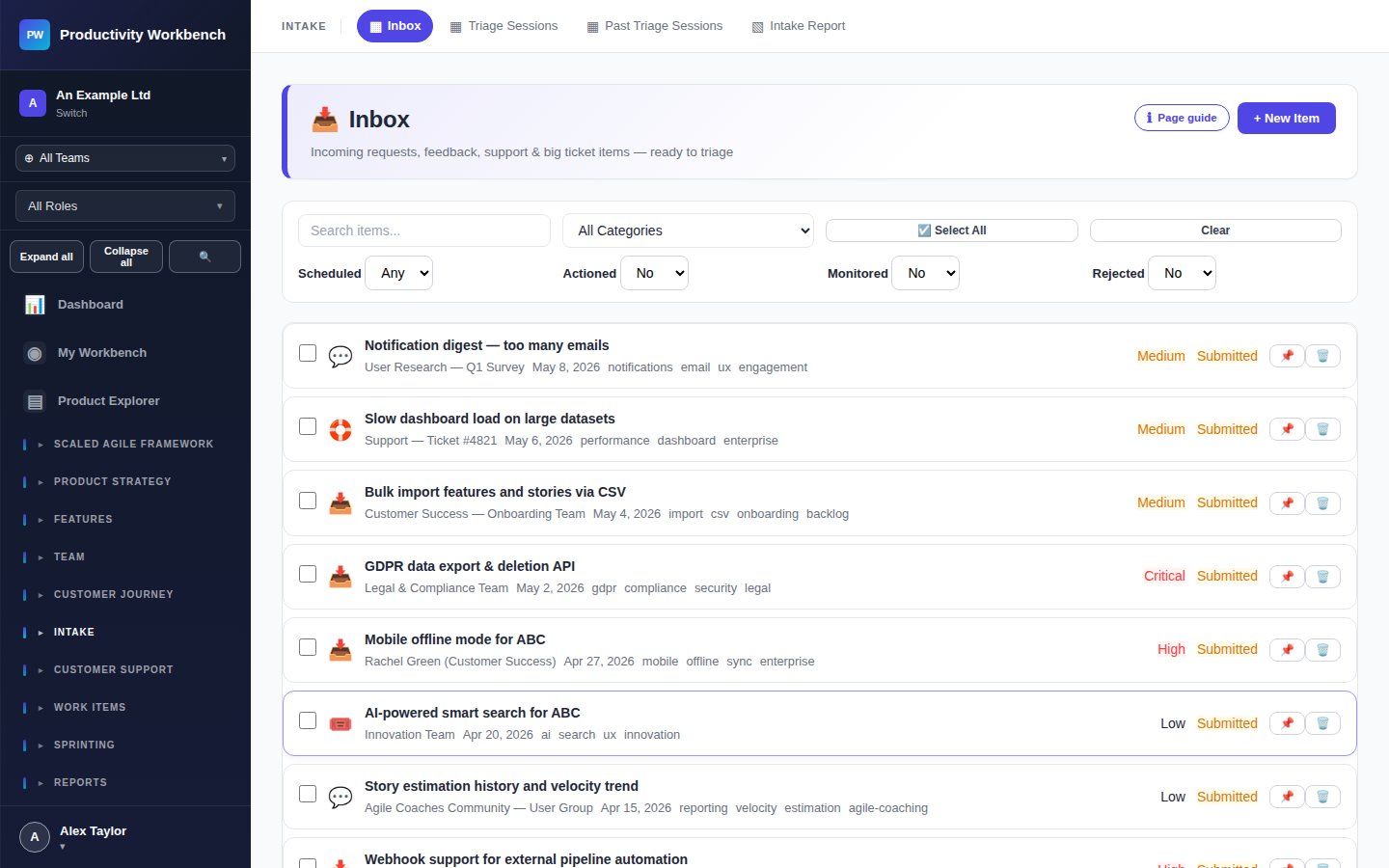
Click New Ticket. Select a category (Billing, Technical, Access, Feature Request, Governance / Compliance). Describe the issue clearly, including the affected workspace(s), any error messages, and steps to reproduce. Attach screenshots where helpful.
Support tiers & SLAs
| Plan | Support channel | Response SLA | Priority routing |
|---|---|---|---|
| Free | Community forum only | Best effort | No |
| Business | Tickets + email | 2 business days | No |
| Enterprise | Tickets, email + phone | 4 hours (P1); 1 day (P2) | Yes — named CSM |
Priority levels
- P1 — Critical: Organisation-wide outage or data access failure. 24/7 response for Enterprise.
- P2 — High: Key feature unavailable, affecting multiple users. Business-hours response.
- P3 — Normal: Single-user issue, question, or non-urgent bug.
- P4 — Low: Feature request, documentation feedback, cosmetic issue.
Enterprise: Customer Success Manager
Enterprise organisations have a named Customer Success Manager. Your CSM's contact details appear at the top of the Support page. Use them for strategic guidance, onboarding, and escalations above P2.
Organisation Notifications
Configure organisation-wide notification settings — which events generate notifications, who receives them, and through which channels.
Notification categories
Distribution lists
Create distribution lists (e.g. "Security Team", "Finance", "Engineering Leadership") and assign them to notification categories. Members on a list receive notifications regardless of whether they have Organisation Admin access — useful for routing billing alerts to Finance and security alerts to your CISO.
Channels
- In-app: Notification bell in the Organisation Portal header.
- Email: Sent to distribution list members. Configure digest frequency (immediate, daily, weekly).
- Webhook: POST to a configured URL for integration with Slack, Teams, PagerDuty, or custom tooling.